

View App and Extension Usage Details
As an administrator, you can use the Google Admin console to audit apps and extensions installed on enrolled Chrome browsers and ChromeOS devices. This report is your primary tool for managing Manifest V2 deprecation, identifying risky permissions, and handling user installation requests.
| Before you begin: You must turn on Chrome browser reporting. It can take up to 24 hours for data to show up in reports after enabling. |
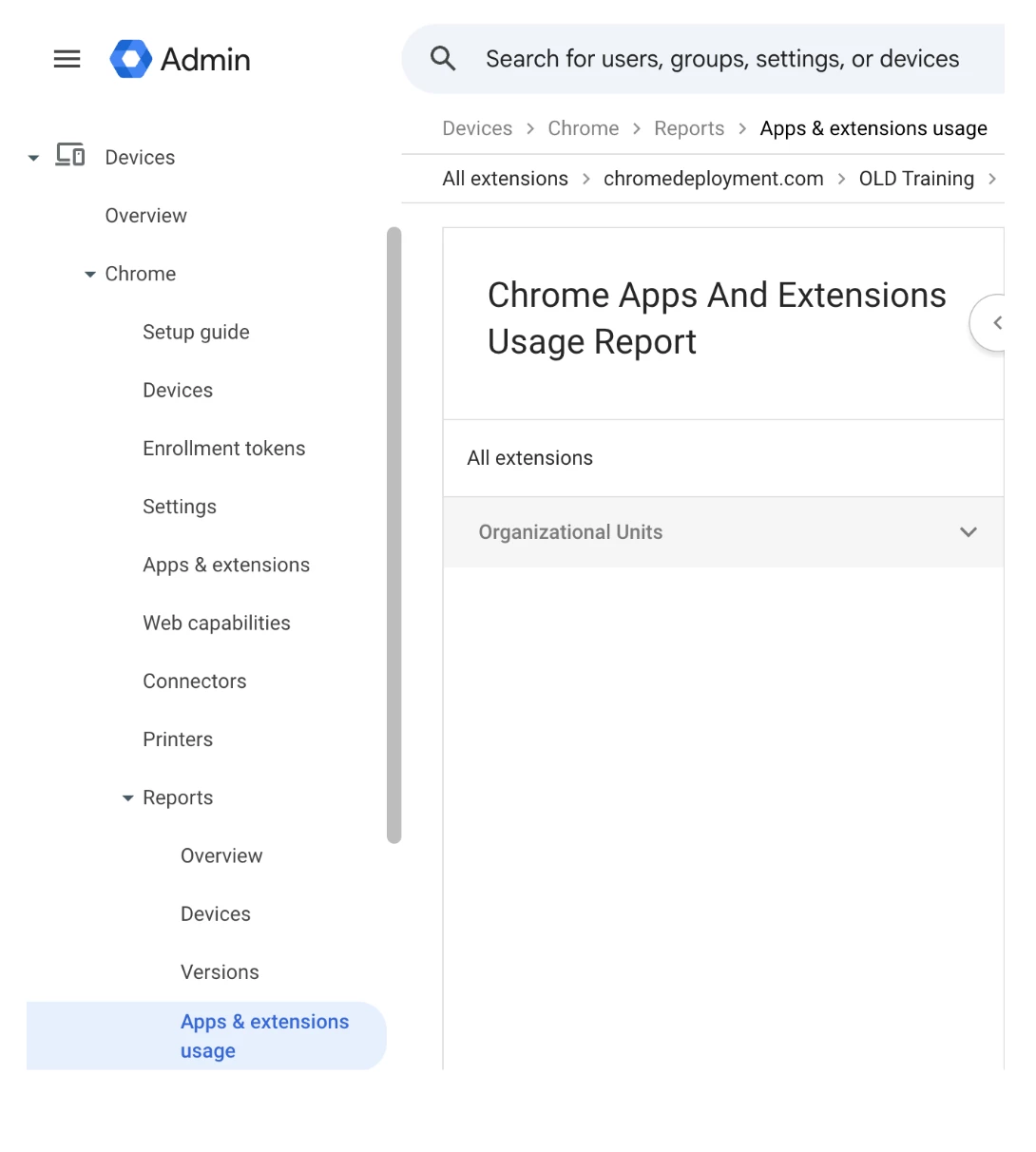
Step 1: Accessing the Report
| 1. Sign In Log in to the Google Admin console | ➔ | 2. Navigate Devices > Chrome > Reports | ➔ | 3. View Select Apps & extensions usage |
(Optional) On the left, select an organizational unit to filter the report. By default, all extensions are shown.
Step 2: Understanding Critical Data Columns
| Column | Details |
| Notifications | Flags critical issues:
|
| Manifest Version | Reports "2", "3", or "2, 3" (mixed versions). Warning: In Chrome version 139 and later, Manifest V2 extensions will no longer work and will load in a disabled state. Admins cannot re-enable them after this point. |
| Chrome Web Store | Published: Public, unlisted, or private. Taken down by Google: Removed due to policy violation or malware. Unpublished by developer: Developer voluntarily removed it. |
| Install Type | admin (policy), development (unpacked), sideload (via 3rd party software), or normal (user installed). |
Step 3: Searching and Filtering
You can locate specific threats or audit compliance using the search box. Search supports these pre-configured terms:
- App ID: Paste the 32-character ID from the Chrome Web Store URL.
- Permission: Find apps requesting high-risk access.
- Manifest version: Quickly filter for "2" to audit legacy extensions.
- Last Activity: Filter for apps active recently.
Step 4: Managing Apps (Block, Force Install, Requests)
You can take action directly from the report or view deeper details.
- Block or Force Install: Hover over a row, click the Action menu (⋮), and choose to Block or Force install for the selected OU.
- Review Installation Requests: Click a row to open App Details.
- Look for the Installation requests section.
- This lists OUs where users have requested the app.
- You can approve the request by changing the installation policy directly from this list.
Known Issues & Limitations
|
Official Resource: View app and extension usage details - Google Support
