

Troubleshooting BYO-GCP connections and servers
Cameyo provides easy infrastructure management for hosting apps in your own GCP Project (Azure is available as well). With “Bring your own GCP” or BYO-GCP, a simple connection to the GCP APIs provides elastic clusters, power management, backup through snapshotting, disaster recovery, geo-locating servers, and much more without manual lift from your IT folk.
Connecting your GCP project is done through following the steps outlined in this article.
Once you have made the connection without errors, go ahead and try creating a server by selecting “Server-> +Add” in the Cameyo console.
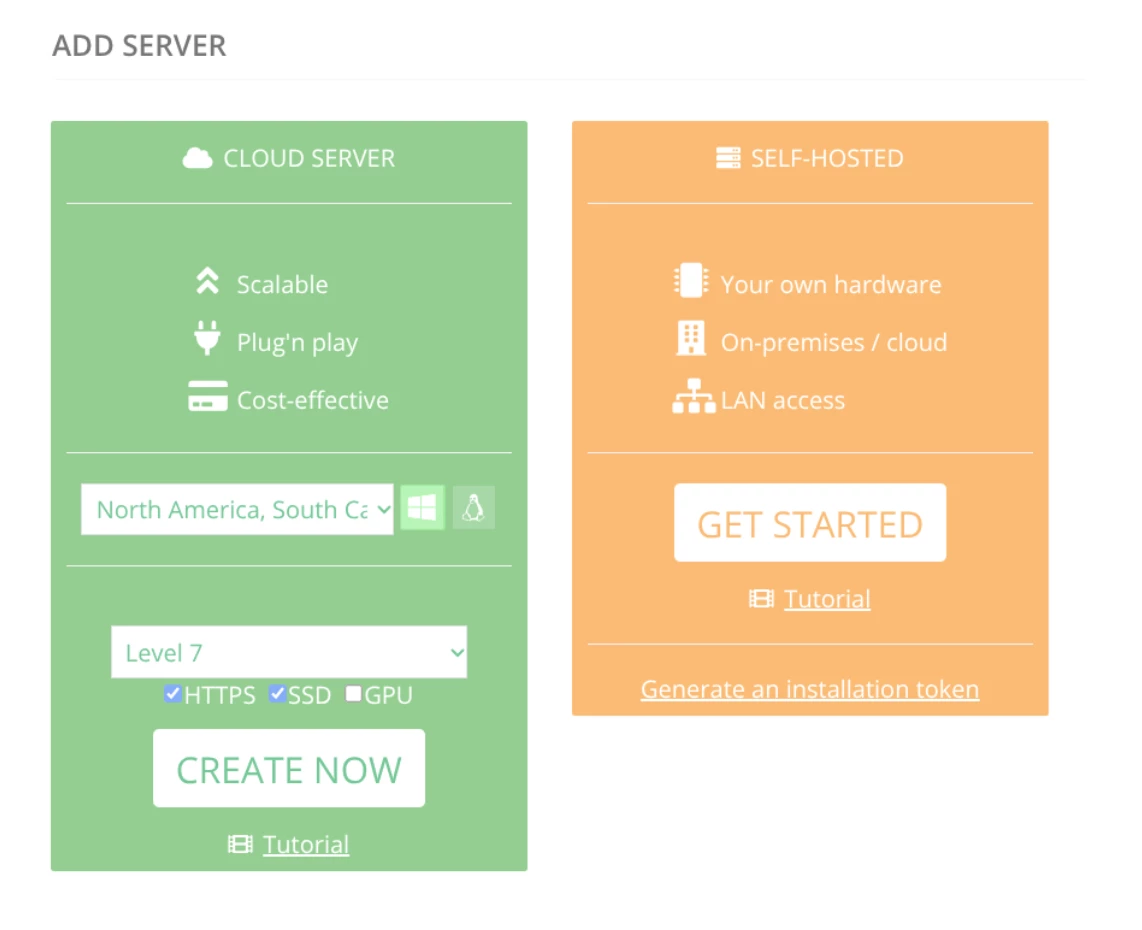
If you have followed these steps but are having trouble getting your first (or second) server automatically created in Cameyo, here are some helpful tips for troubleshooting.
Inserting the JSON key gave you an error
Make sure you use the “Manual” method for connecting the GCP APIs to Cameyo from this page: https://online.cameyo.com/byo-gcp
If you get an error, make sure you check that you’ve copied the entire contents of the JSON file into the box provided.
Also check to make sure that the Service Account you used to create the JSON key has the appropriate permissions. Project->Editor is needed to make sure that Cameyo can create VMs and storage in your compute engine.
Servers do not appear, even after looking as if they were created
Once you have tried to create a server, the Cameyo Console will look as if the server is being created but WILL NOT give you an error. After sitting for a couple of minutes on the server creation screen, try selecting the “Server” page from the menu on the left. If you don’t see a new server, let’s look at the GCP error logs.
Specify a technical contact to get error logs
The easiest way to get errors from the GCP API is to specify a valid email address in the Cameyo console for Technical Contact. This is under “Admin->Company Settings.”.
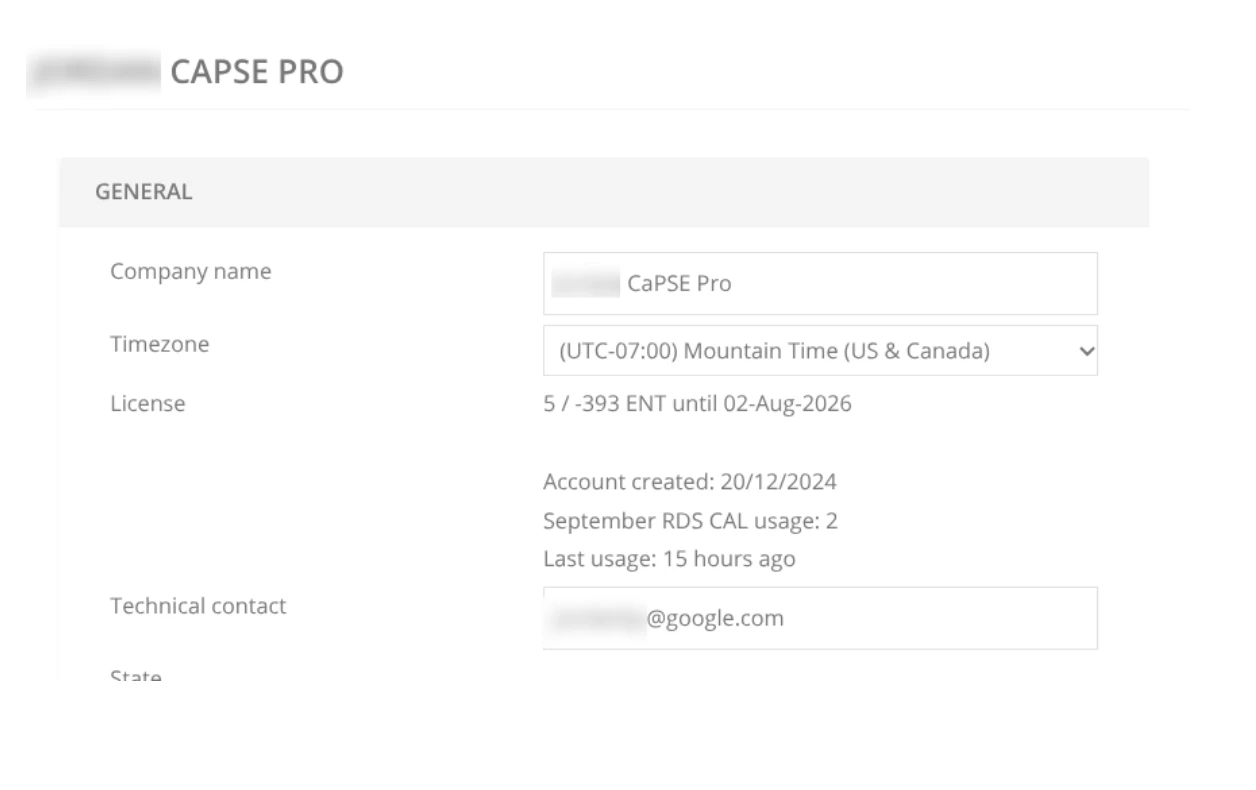
If you get an error, check the email for the technical contact:.
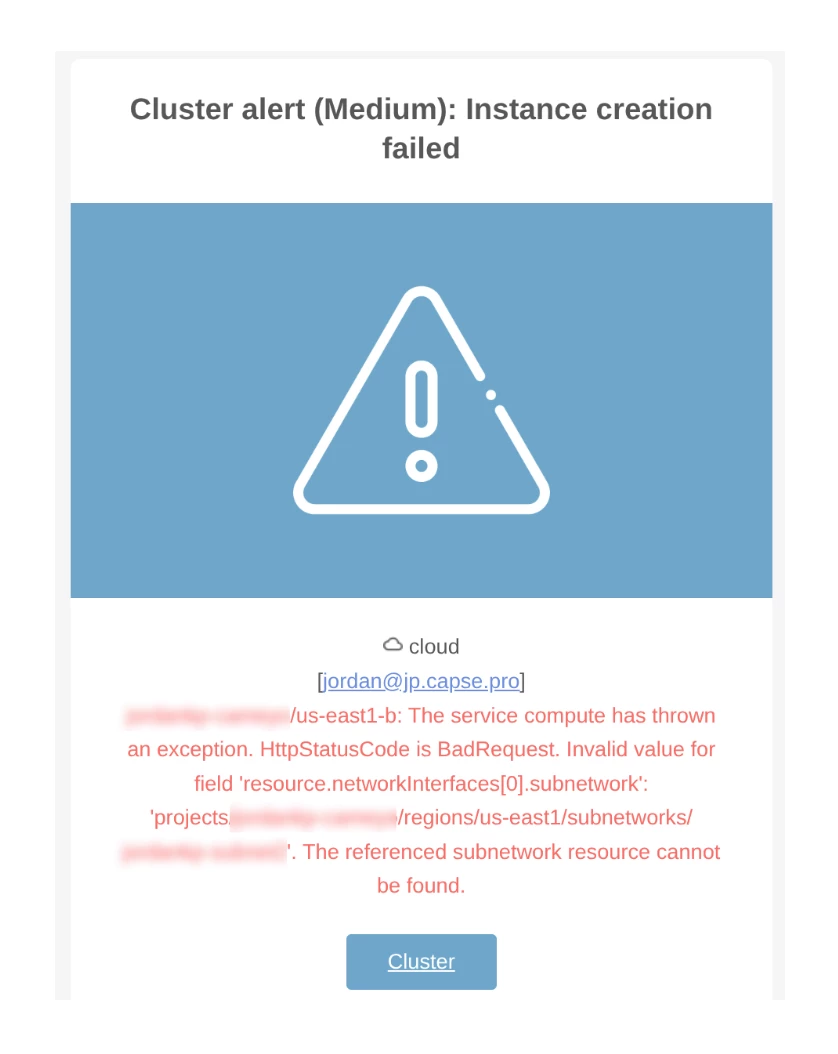
In this example, the error clearly identifies that I have not specified a VPC or Subnet. You can do that with a simple PowerTag on the Company, Cluster, or Server page in the Cameyo console. Here are the directions for specifying a VPC and Subnet.
Check error logs in GCP
Alternatively you can check for errors in your GCP instance.
Go to admin.cloud.google.com to access your GCP Project. Select the correct Project and surf to “Monitoring->Logs explorer.” You can filter logs by Severity by selecting “Error” on the panel on the left.
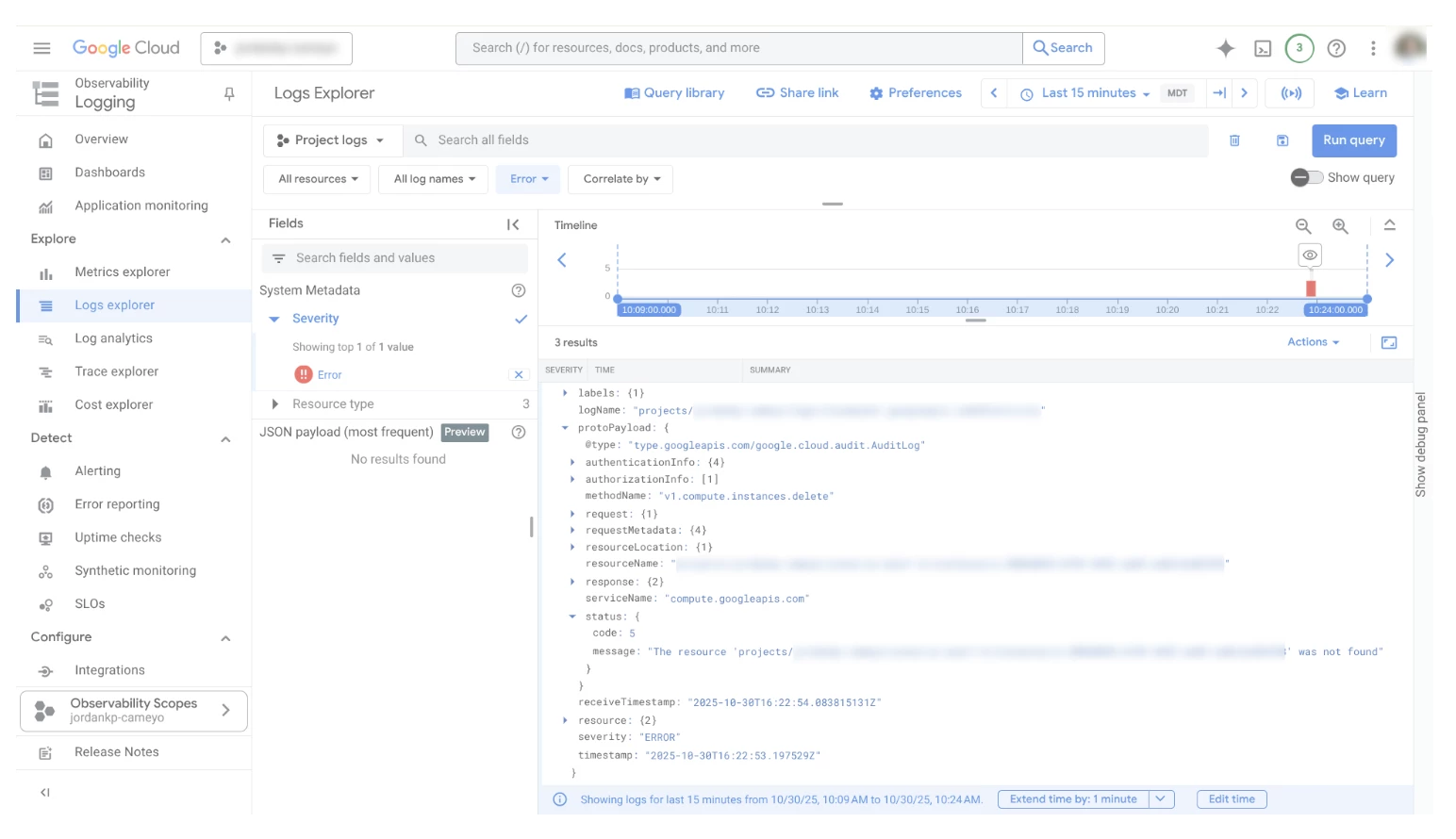
Most common errors are these:
- VPC or Subnet not specified. Specify them with PowerTags in Cameyo.
- Your service account you created or specified does not have permission to create VMs in the compute engine. Review the instructions for setting up a BYO-GCP instance carefully. The service account you use to create a JSON key will need the correct permissions for creating and destroying servers and managing storage.
- You have not enabled the compute engine in your GCP project. This typically happens when you are new to GCP. Again, review the instruction and make sure you have hit the “enable” button under “Compute Engine-> VM instances” in the GCP console
- You do not have allocations or quotas are enforced preventing you from creating new compute instances in your project. Adjust by reading these instructions
- You have not configured a VPC or Subnet for your new Project. Please go to your new Project in the GCP console and specify a VPC and Subnet.
In the comments, please share other hazards you have run into
Servers appear in Cameyo console at first but soon disappear after being created
Once the Cameyo server is created in GCP, it needs to communicate with the Cameyo portal. If the server appears but then disappears before the status icon turns green, Cameyo was able to create it with the GCP APIs but the Cameyo portal could not communicate with the new server.
Here are some common reasons why:
- No Internet access. Cameyo is a SaaS product and manages your servers from the Cameyo portal or control plane. If you have not configured your VPC to access the Internet, please do so. Make sure you have a valid connection to the internet from any of the Cameyo servers. This is vital for us to manage and configure all of the servers needed to host apps.
- Internet Filtering. If you have internet filtering in place, you will need to approve the following so the Cameyo client on the Windows server can get access to the Cameyo portal.
- *.cameyo.com
- *.cameyo.net
- More information about configuring your firewall
- Proxy server. If your environment requires a proxy server, you will need to specify configure it on the Windows Server created by Cameyo. If you can avoid a proxy, please do so. It will be difficult to manage servers now and in the future. However, if your security team demands it, here are the instructions for configuring it. You may have to disable the proxy temporarily, set up your first Cameyo server, follow the instructions, then restore the proxy settings.
Please contribute if you have seen other errors when trying to configure your Cameyo servers in your GCP project. This is a great forum for us to learn together.
