

Managing Extensions via Chrome Enterprise Core

Securely manage Chrome extensions across Windows, Mac, Linux, and ChromeOS using Chrome Enterprise Core
Extensions boost productivity but can introduce security risks if left unchecked. This guide provides IT administrators with the workflows to easily deploy essential tools, evaluate existing usage, and mitigate threats using granular controls.
Overview: Extension Management Policies
To give you an idea of what is possible within Chrome Enterprise Core, here is a quick breakdown of the core extension management policies you can leverage:
| Policy Name | Description & Capability |
| ExtensionInstallAllowList | Specifies exactly which extensions users are approved to install. |
| ExtensionInstallBlockList | Specifies which extensions are blocked. Disables currently installed versions and prevents new installs. |
| ExtensionInstallForceList | Silently installs business-critical extensions on user machines. Users cannot disable or uninstall them. |
| ExtensionSettings | A powerful policy to control permissions, block access to sensitive websites, and set default configurations. |
| Extension Workflows (New) | Allows admins to block all extensions by default, but provides users a button to seamlessly request extensions for admin approval. |
| Version Pinning (New) | Allows admins to pin a force-installed extension to a specific version directly in the admin console for stability testing. |
Section 1: Adding and Deploying Extensions
The fastest way to instantly boost productivity is by deploying or allowing the extensions your users need to do their jobs.
- In your Admin console, navigate to Devices > Chrome > Apps & extensions > Users & browsers.
- Select the target Organizational Unit (OU) on the left.
- Click the yellow + (Plus) button in the bottom right corner and choose Add from Chrome Web Store.
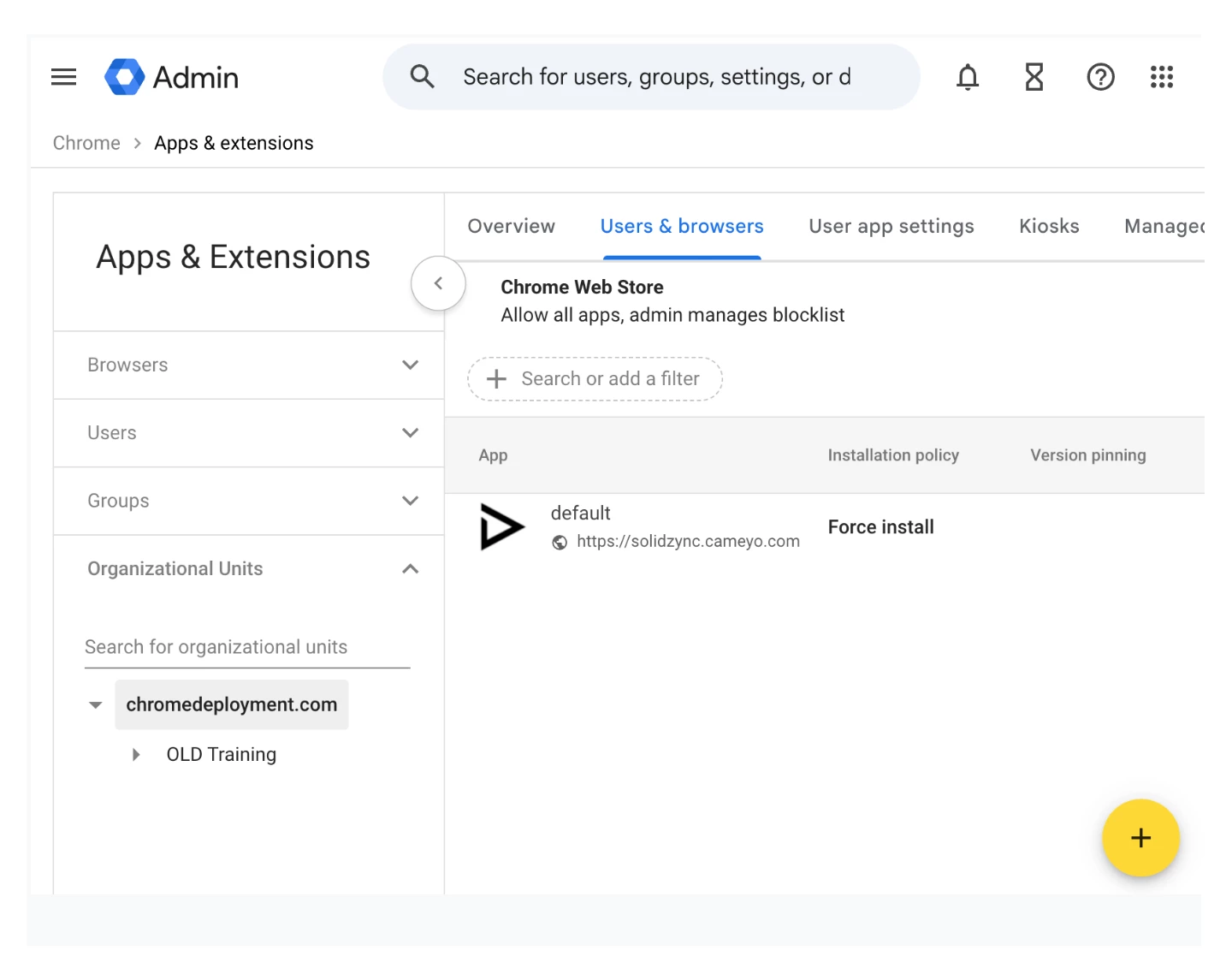
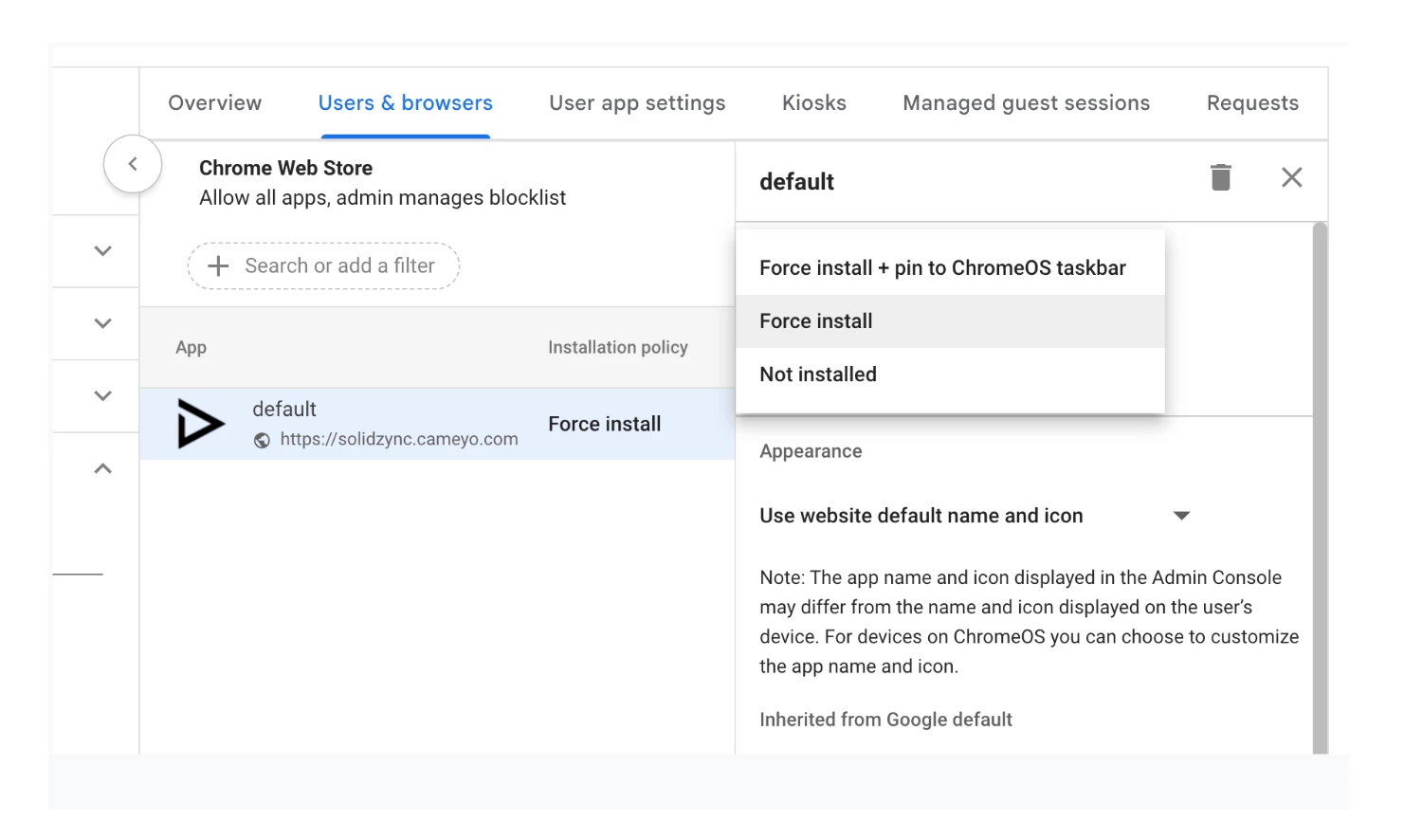
Once you search for and select your extension, you can set its installation policy from the dropdown menu next to the app's name:
- Allow install: Users can choose to download it from the Web Store.
- Force install: Automatically pushes the extension to users without any interaction required. (Note: You can now use the "Version Pinning" column next to this to lock the extension to a specific version!)
- Block: Explicitly prevents the installation of the extension.
Section 2: Managing Existing Extensions
Before implementing broad blocking policies, it is crucial to evaluate what your users are currently running to avoid disrupting critical workflows and to mitigate potential threats.
You can gather this intelligence using the Apps & Extensions Usage Report:
- Navigate to Devices > Chrome > Reports > Apps & extensions usage.
- This report provides instant visibility into all installed extensions and how many users/browsers are currently running them.
- Analyze Risk: Click on any extension in the list to view its requested permissions and its third-party Risk Score (provided by partners like Spin.AI or LayerX). This helps you quickly identify extensions that might be overreaching.
Section 3: Establishing Prerequisites & Blocking Threats
Instead of manually blocking thousands of individual extensions, you can use Chrome Enterprise Core to establish broad, automated security guardrails.
A. Block by Permission (Least Privilege)
You can prevent any extension from accessing sensitive hardware or data by blocking specific permissions globally.
- Go to Devices > Chrome > Apps & extensions > Users & browsers > Settings.
- Scroll down to Permissions and URLs.
- Under Blocked permissions, select the specific risks you want to avoid (e.g., audioCapture, usb, or videoCapture). Any extension requiring these permissions will be disabled or blocked from installation.
- Click Save. Extensions requiring these will be disabled or blocked from installation.
B. Block Extension Access to Sensitive Sites
You can allow extensions to function generally, but completely block them from running on specific corporate portals (like HR, Payroll, or internal CRM tools).
- In the same Settings tab at the top, scroll down to Runtime blocked hosts.
- Enter the URLs you want to protect (e.g., *://payroll.company.com).
- Click Save. Extensions will no longer be able to read, alter, or modify data on these specific pages.
C. Allow/Block Specific Extensions
Best Practice: Use a "Block All, Allow Some" strategy.
- Go to Apps & extensions > Users & browsers.
- Click Additional Settings (gear icon).
- Under Chrome Web Store, select Block all apps, admin manages allowlist.
- To allow an extension through this block, follow the steps in Section 1 to add the extension and set its policy to Allow install or Force install.
Related Resources
