

Sign-In and Feature Navigation
As an administrator, the Cameyo Admin console allows you to manage virtual app deployments, add or remove users, install and deploy applications, and configure Single Sign-On (SSO).
Initial Setup via Google Admin Console
After completing the ordering process, you must review and accept the Terms of Service to access the console for the first time:
- Sign in to your Google Admin console.
- Navigate to Devices > Chrome > Virtual Apps.
- Review and accept the Terms of Service to continue.
- Click Go to Cameyo by Google to access your Cameyo Admin console.
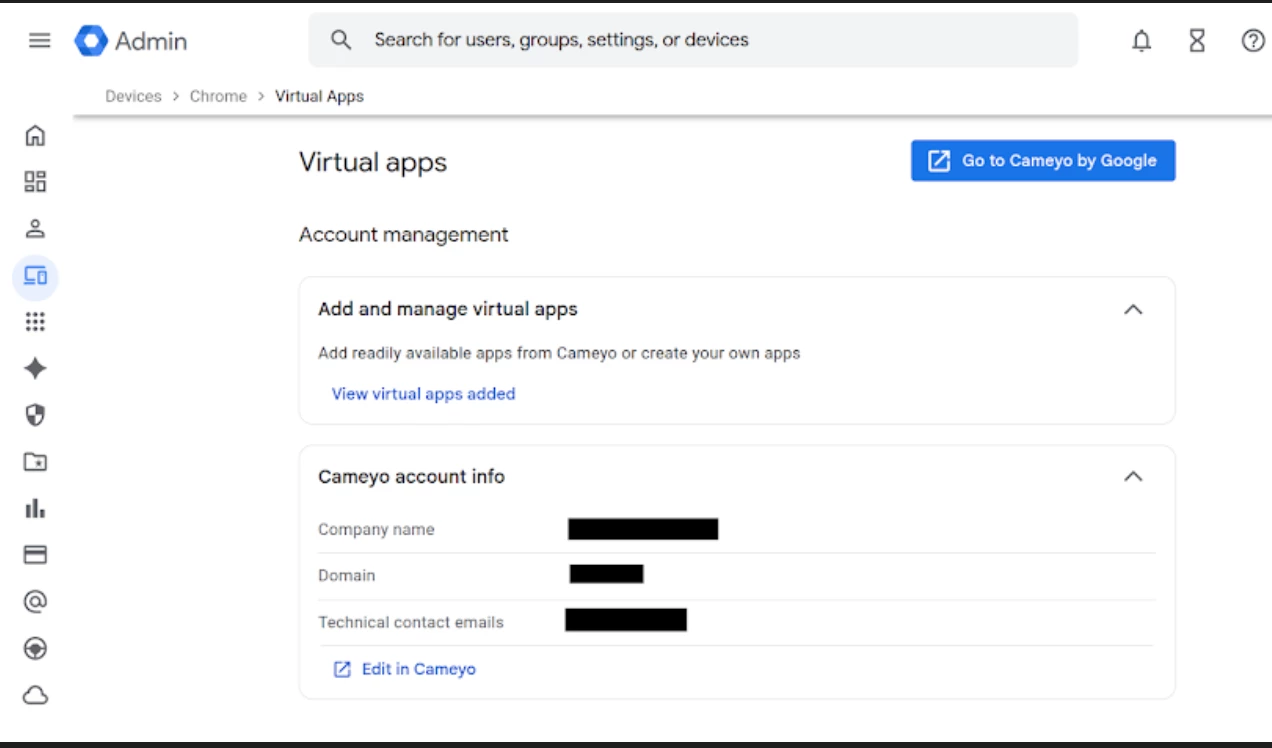
Note: Once initial setup is complete, you can bookmark the Cameyo Admin console URL for direct access during subsequent sign-ins.
Direct Sign-In Options
You can access the console directly using either a standard or company-specific URL:
- Standard URL: Navigate to https://online.cameyo.com/.
- Company Subdomain: Once configured, you can use a dedicated link referencing your company name (e.g., https://mycompany.cameyo.com).
Steps to sign in:
- Navigate to the sign-in page.
- Click Sign in with Google (or your alternative configured SSO provider).
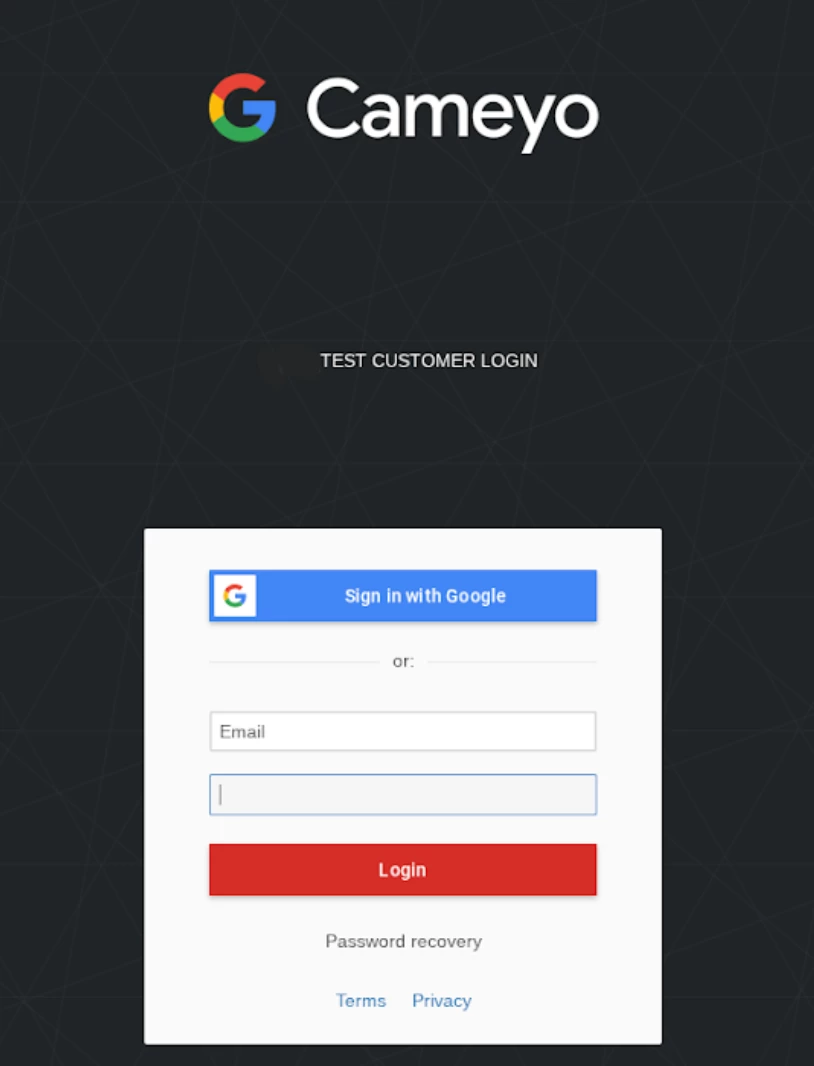
- Complete the authentication flow and the Cameyo dashboard opens.
Explore Cameyo Features and Navigation
First, select your time zone and click ‘Set’.
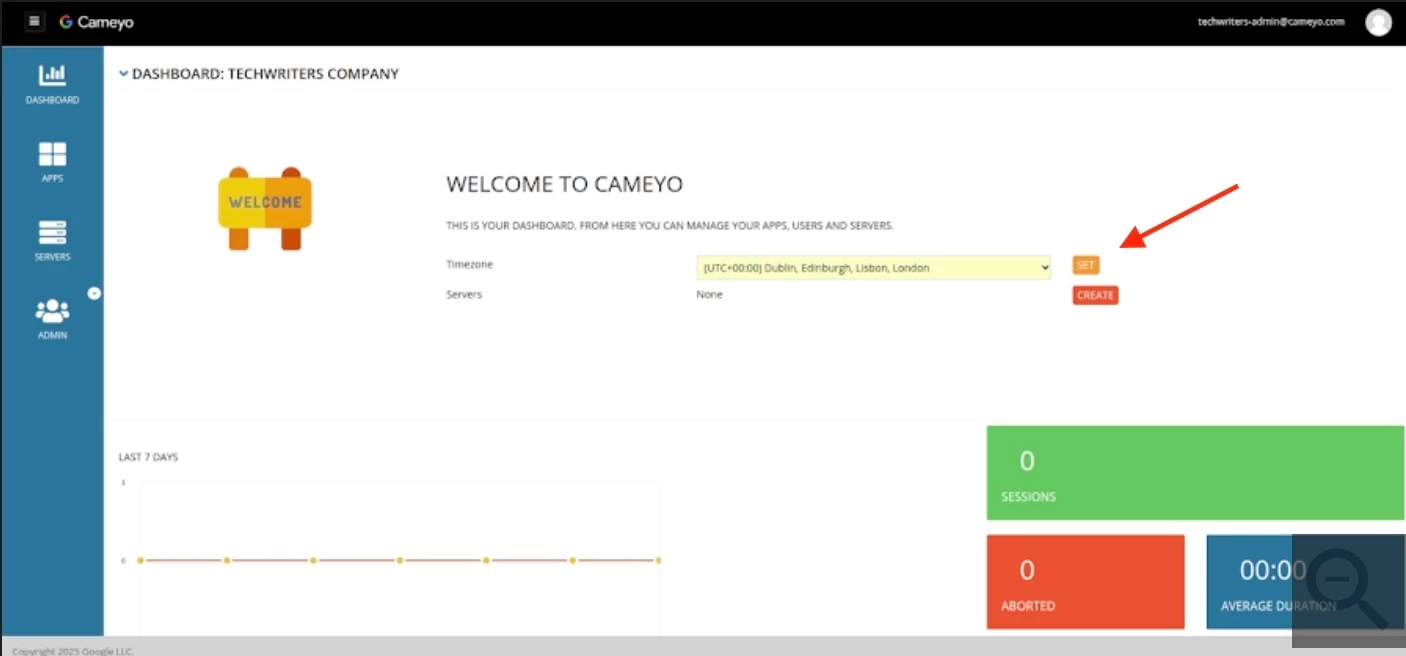
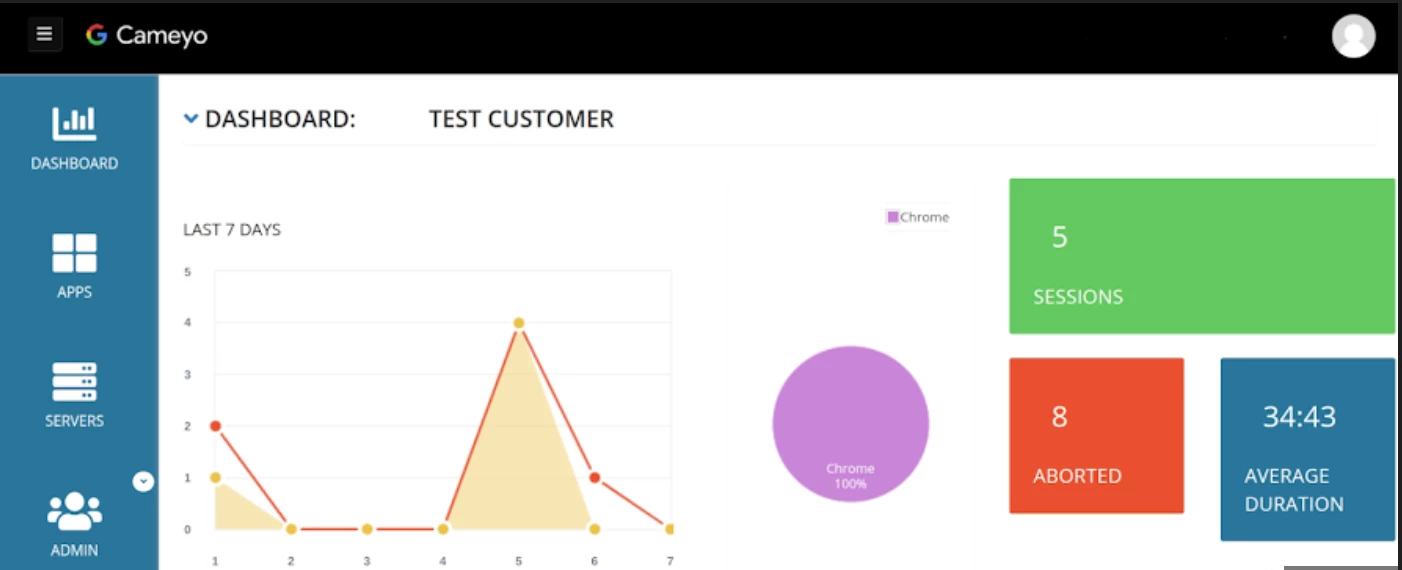
The Cameyo Admin console features a left-hand navigation panel that allows quick access to administrative tools, server management, and application deployments. Navigation icons categorize each section.
1. Dashboard
The Dashboard provides real-time statistical views and status indicators of your Cameyo environment.
- Real-Time Visualizations:
- Line Graph: Displays the real-time number of active sessions.
- Pie Chart: Shows the percentage breakdown of browser usage.
- Session Summaries: Colored panels displaying periodic summaries for:
- Sessions
- Aborted
- Average duration
- Expandable Operational Views:
- Active sessions
- Servers status
- Apps list
- Users list
- Historical Data: Select specific hyperlinks to filter usage and performance data over historical intervals:
- Today (previous 24 hours)
- 2 days
- 7 days
- 30 days
- 90 days
2. Apps
Use this section to view and manage your published applications and verify their current operational status.
3. Servers
Provides a complete list of your deployed servers. Administrators can view, manage, and verify the status of individual servers.
4. Admin
The Admin section houses system-level administrative configurations:
- Company Settings: Manage portal branding, email configurations, SSO integrations, security policies, and API keys.
- Session Settings: Configure timeouts, file support, session controls, and notifications.
- Users: Add or delete users, view defined user groups, and export user lists as a CSV file.
- Analytics: Generate and review periodic reports detailing overall Cameyo usage and performance.
5. Portal
The end-user portal URL is displayed or configured here (for example, https://online.cameyo.com/portal). This is the web destination your users access to launch their assigned virtual applications.
