

Step-by-Step Virtual App Deployment in Cameyo
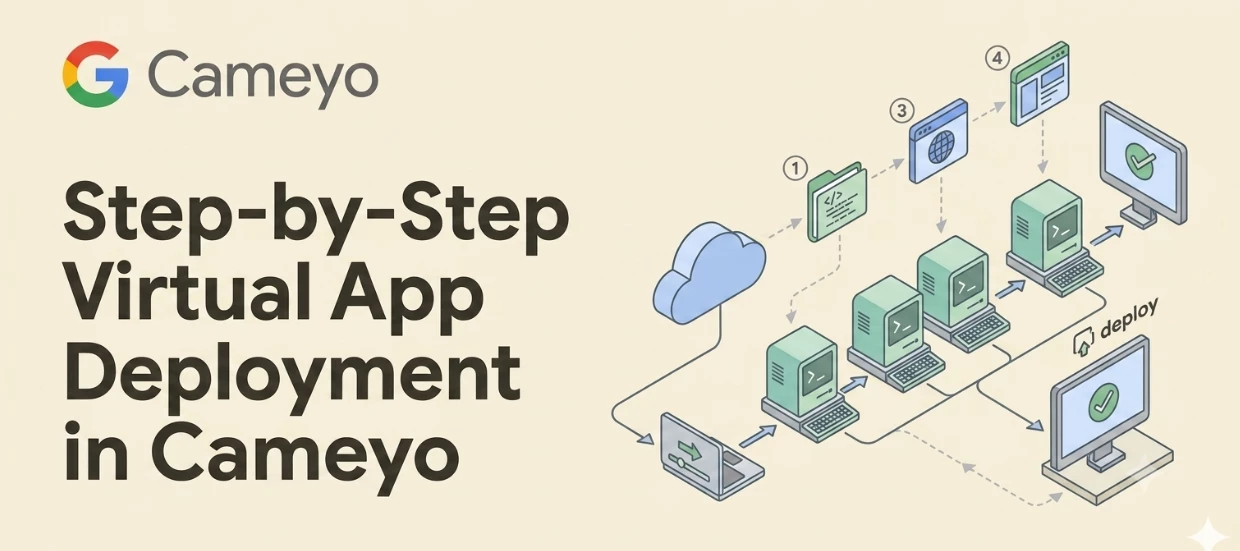
This guide provides step-by-step instructions for administrators to install, publish, and deploy their first virtual application within the Cameyo environment. Establishing a simple application deployment first ensures system verification before transitioning to more complex business applications.
Step 1: Install and Publish a Basic App
Once your Cameyo server is active, connect with administrative privileges to install and publish your initial validation application. It is recommended to use a lightweight utility, such as Notepad++, to verify environment stability.
1. Connect to the Cameyo Server
- Sign in to your Cameyo Admin console.
- From the navigation panel, select Servers.
- Locate your target server in the list and verify it displays a green status icon.
- Select Action > Connect as Admin. This opens a secure Windows Server desktop interface session as a local Administrator.
2. Install and Publish the Application
- Within your active Cameyo server session, click the Cameyo shortcut located in the taskbar.
- In the "Your App into HTML5 in 3 Steps" panel, select Launch browser to open Google Chrome on the server.
- In Chrome, navigate to the Notepad++ homepage (or the homepage of your chosen validation application).
- Download the standard Windows installer package directly to the server.
- Launch the downloaded installer and complete the configuration steps within the installation wizard.
- Once the installation process completes, locate the newly installed application listed in the Publish your Apps dialog in the bottom-right corner of the server interface.
- Select the checkbox next to the application (e.g., Notepad++) and click Apply to publish it.
Step 2: Deploy the App to Users
After an application is published, it becomes immediately accessible in your Cameyo Admin console Apps list. You can deploy this application directly through the Cameyo User Portal or manage it within the Google Admin console.
1. Deploy to the Cameyo User Portal
- On the Cameyo Admin console, select Apps from the navigation panel.
- Select your newly published application (e.g., Notepad++) from the list.
- Click on the application icon (i) or the details icon to open the Apps Details page.
- Toggle on the Show in portal option to make the application visible to users.
2. Preview the App in the Cameyo Portal
- On the Cameyo Admin console, navigate to Admin > Portal. This provides an administrative preview of the interface your end-users see upon authentication.
- To test and launch the application directly on your server, click the application's icon inside the Apps list.
3. Deploy to Managed Chrome and ChromeOS Users
Applications published in the Cameyo Admin console are automatically synchronized with your Google Workspace environment. To provision the virtual application to managed profiles:
- Sign in to the Google Admin console.
- Navigate to Chrome browser > Apps & Extensions > Users & browsers.
- Select your target organizational unit (OU) from the organizational structure on the left.
- Click the (+) Add an App button.
- Select your recently published Cameyo application.
- Click Add a Virtual App to enforce deployment. (Note: To deploy applications as Progressive Web Apps, reference the documentation for Deploying Cameyo apps as PWAs).
Official Resources
