
Setting Up a Non-Data-Bearing Device
In a modern distributed workforce, managing local data storage is more than a logistical hurdle - it’s a security risk. While ChromeOS is renowned for its TPM-based encryption, any data residing physically on a device is data outside of your direct central control.
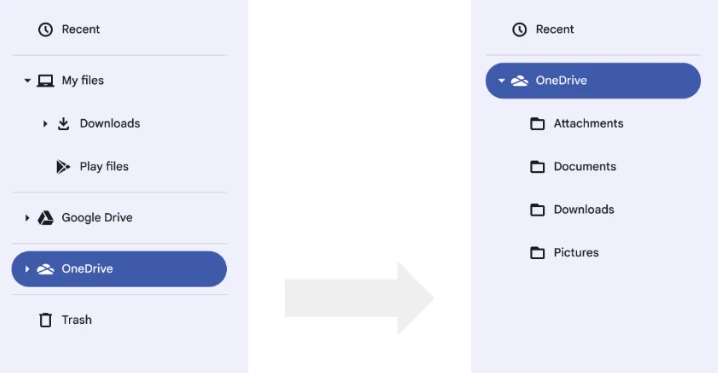
By leveraging ChromeOS features that ensure all files are only stored in the cloud, organizations can transition to a truly "non-data-bearing" model. This configuration ensures that downloads, screenshots, and documents are redirected to the cloud, leaving the local disk as nothing more than a temporary, encrypted pass-through.
User Experience and Automation
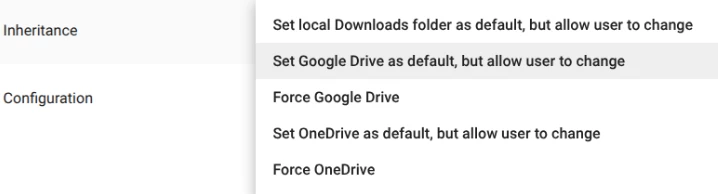
When a file is downloaded, it is temporarily cached locally before being automatically synced to your cloud storage. If the device is offline, files are held in the cache until a connection is restored. This local cache is managed entirely behind the scenes and is purged immediately following a successful upload to ensure local storage remains clear. Once the sync is complete, your files are permanently accessible via the 'Downloads' folder within your integrated Google Drive or OneDrive.
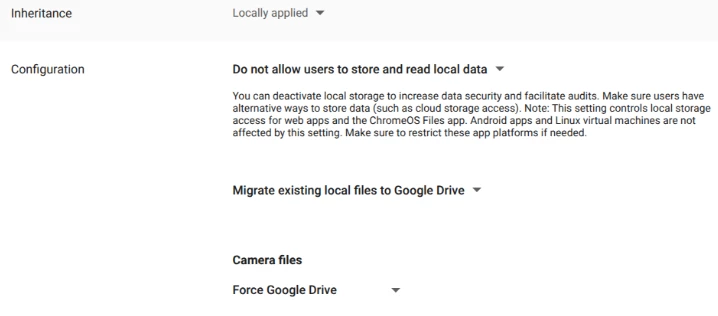
Administrators have three options for handling local files during setup: delete them, retain them as read-only, or migrate them directly to the cloud. After migration, these files automatically fall under Google Drive’s comprehensive management suite, allowing you to apply existing rules for data retention, sovereignty, and Data Loss Prevention (DLP).
⬇
Security and Integration
Getting to your files is easy thanks to Single Sign-On (SSO). When you log into your Chromebook, your Google Drive or OneDrive is already there—no extra setup required. For administrators, it’s worth noting that Android and Linux apps have local file access, so we recommend carefully selecting which apps are made available to your users.
Implementation Strategy
If you are ready to transition your organization to ChromeOS features that ensure all files are only stored in the cloud, we recommend starting with a small pilot group. This allows you to monitor internet bandwidth and device RAM performance before a wider rollout. By deploying in stages, you can ensure your network infrastructure is equipped to handle the initial migration of user data as local access is phased out.
We hope these capabilities help streamline your fleet management and enhance data security.
For more detailed technical guidance, please explore the resources below:
Use cloud storage as sole storage option on ChromeOS devices
Learn how to configure Google Drive or Microsoft OneDrive as the exclusive storage provider and discover options to remove access to local storage on ChromeOS.
Set up Office file handling for managed users
Explore ChromeOS enterprise optimizations for Microsoft 365 storage, including deep integration between the Files app and OneDrive for a seamless, desktop-like experience.
