

Common Chrome Enterprise Core Use Cases
Discover how adopting browser management provides instant value to your organization with the Core version of Chrome Enterprise.
Once you have set up your Admin console, the next step is applying policies that make an immediate impact on your organization's security and user experience. By leveraging a few popular features, you can easily control data access, manage shared devices, and tailor browsing parameters right out of the box.
Here is a look at some of the most common and valuable use cases you can implement today.
1. Restrict Sign-in to Protect Corporate Data
Whether you are deploying on company-owned hardware or looking to manage Chrome browser on unmanaged devices, it is crucial that employees stick to their managed corporate profiles. A highly popular use case is restricting sign-in to specific accounts to prevent users from logging in with a personal account (such as a personal Gmail address).
By enforcing this, you ensure that employees cannot sign in with a personal profile and download a bulk of company data to an unmanaged environment. It keeps your corporate data secure and guarantees that the browser policies you have set remain active.
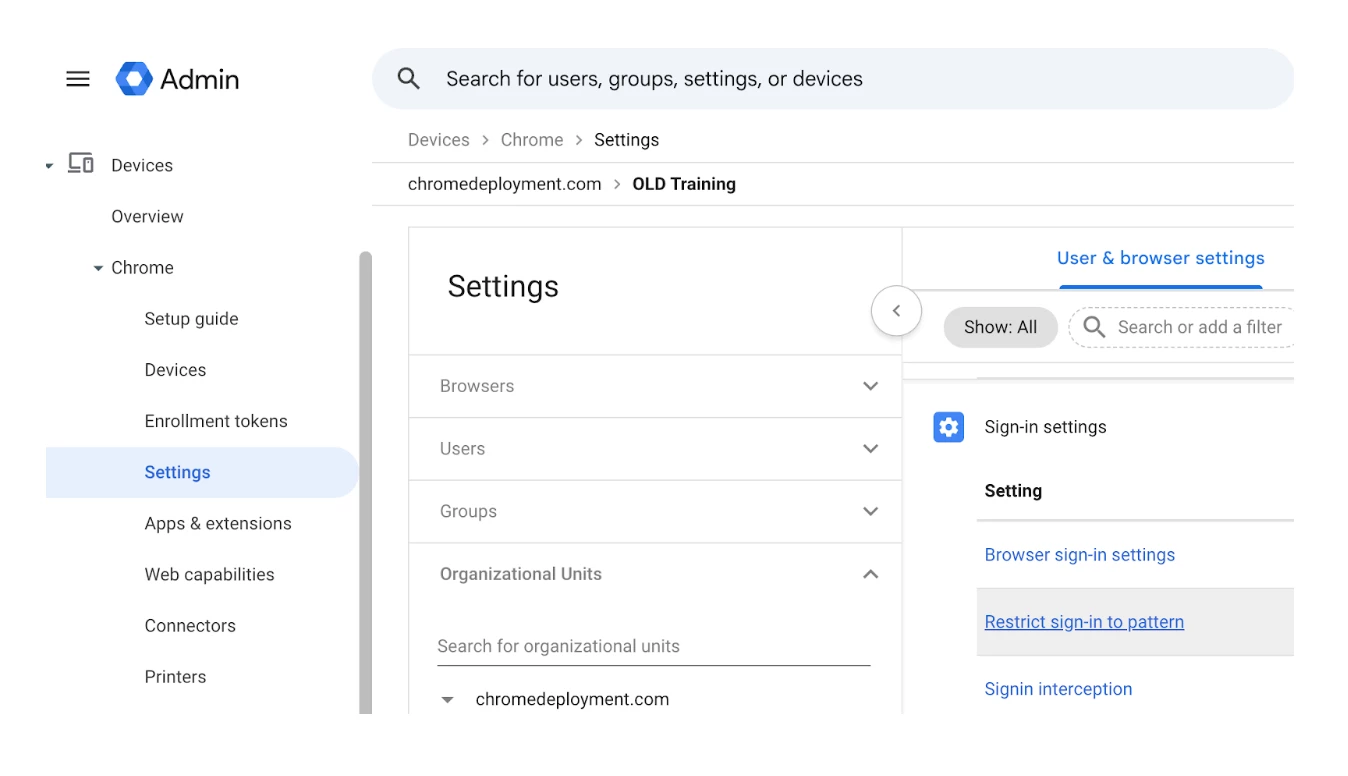
- Navigate to Devices > Chrome > Settings > Users & browsers in your Admin console.
- Select the appropriate Organizational Unit (OU) from the left panel.
- Search for Sign-in settings and locate the Restrict sign-in to pattern policy.
- Enter your authorized corporate domain (e.g., *@yourcompany.com) to block all other sign-ins, and click Save.
2. Manage Shared Devices with Ephemeral Mode
If your organization utilizes shared devices (such as kiosks or shift-worker stations), setting up Ephemeral mode is an essential feature.
Ephemeral mode acts as a complete user session wipeout: anytime a user signs out of the device, the browser wipes everything from that session.
This ensures that the next person who logs in receives a brand new, clean start—meaning they will never open the browser and accidentally see somebody else's email, history, or downloaded files.
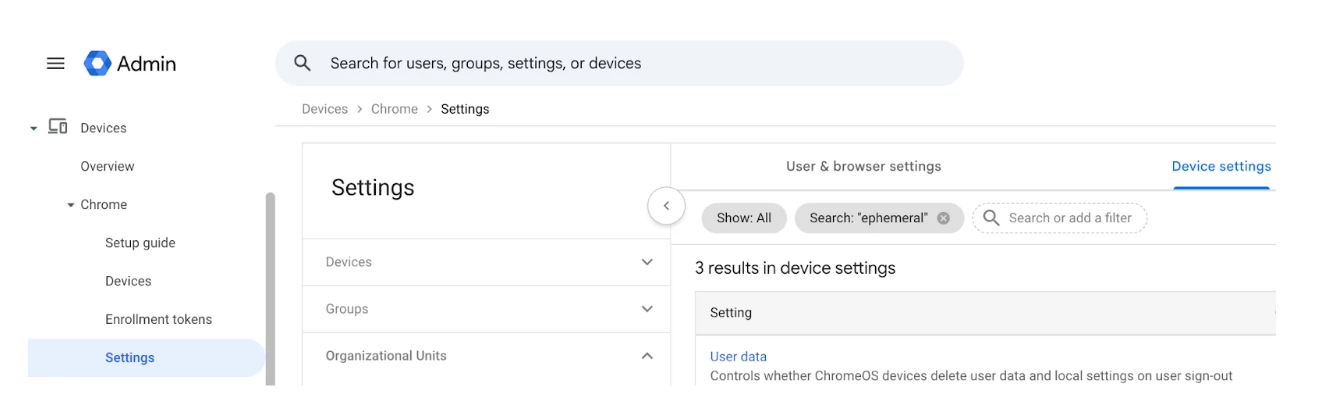
- Navigate to Devices > Chrome > Settings > Device settings (for managed devices) or Users & browsers (for managed profiles).
- Select your target Organizational Unit (OU).
- Search for the User Data setting.
- Set the policy to Erase all local user data info, settings, and state after each sign-out.
3. Configure Essential Security Settings
Browser management allows you to easily dictate the baseline security and privacy settings for your fleet. You can configure Chrome security settings exactly how the browser behaves to meet your internal compliance needs.
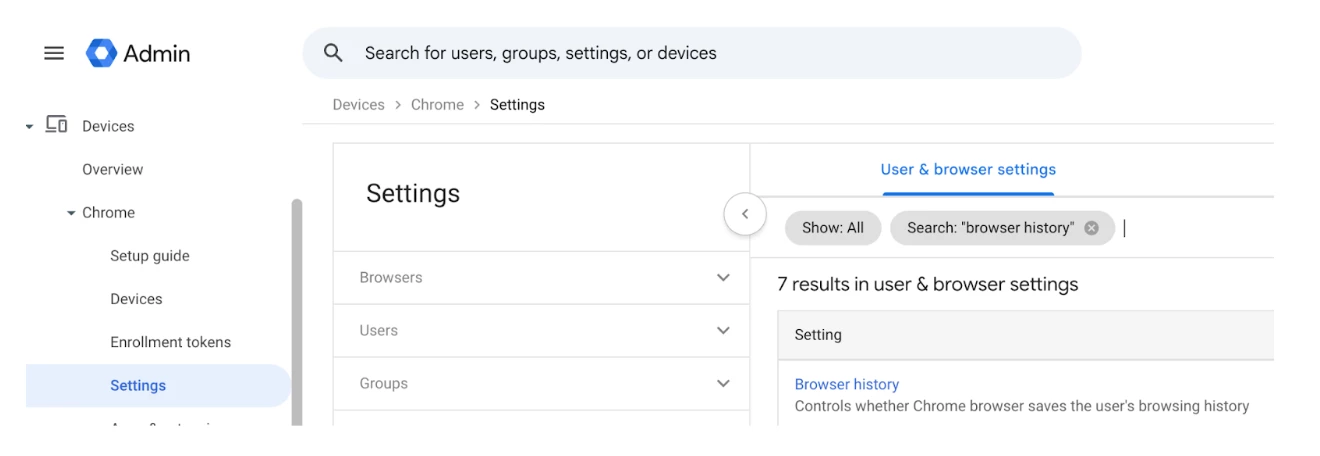
- Navigate to Devices > Chrome > Settings > Users & browsers.
- Select your Organizational Unit (OU).
- For History: Search for Browser History to dictate whether history is saved and how much is retained on the device.
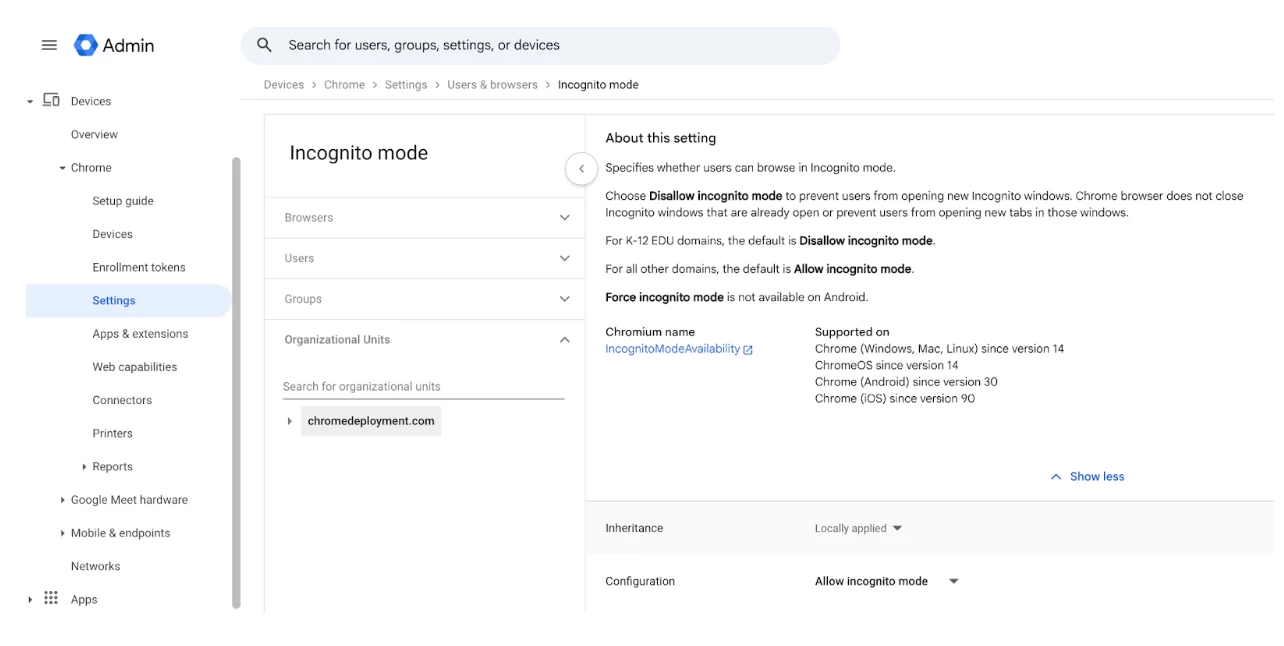
- For Incognito: Search for the Incognito mode to find the Incognito mode availability policy and choose whether users can utilize Incognito mode, or disable it entirely to ensure all web traffic remains visible and governed by your policies.
4. Implement URL Blocking (Free vs. Paid)
Controlling which websites your users can access is a fundamental part of browser management. The approach to blocking or allowing specific URLs depends on the version of Chrome Enterprise you are utilizing.
- Navigate to Devices > Chrome > Settings > Users & browsers.
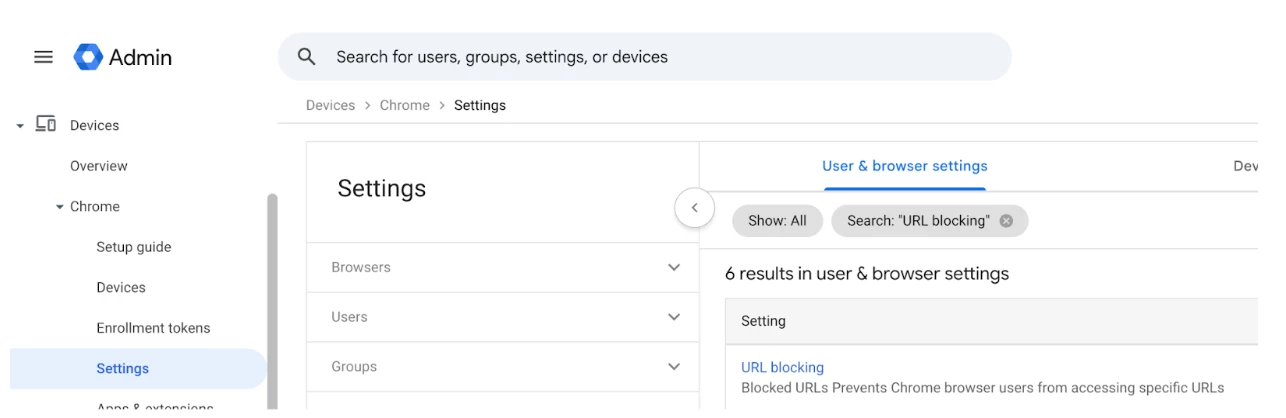
- Select your Organizational Unit (OU) and search for URL Blocking.
- Free Version: Enter specific URLs into your block lists and allow lists. You will need to manually maintain these lists to keep them up to date.
- Paid Version: Rely on Google to automatically categorize and block websites. Instead of maintaining a manual list, simply check boxes to restrict entire categories (e.g., gambling sites, pornography, or specific Generative AI tools).
Want to learn more? Check our First Steps with Chrome Enterprise Core guide.
