

Common Chrome Enterprise Core Use Cases: Part 2
Discover how to manage extensions, control browser versions, and gain critical security visibility.
In the Chrome Enterprise Core Use Cases guide, we explored how to lock down corporate data by restricting sign-ins, configuring ephemeral mode and blocking malicious URLs.
Once those foundational policies are in place, the next step in extracting instant value from browser management is taking control of the extensions your users install, managing how the browser updates, and turning on reporting to see exactly what is happening in your environment.
Here are three more highly valuable use cases you can implement today.
1. Extension Management & Pre-Publishing
Controlling which extensions users can install is arguably one of the top reasons organizations adopt Chrome browser management. Unvetted third-party extensions can pose significant security risks by requiring overly broad permissions to access sensitive website data.
Chrome Enterprise Core allows administrators to shift from a reactive state to a proactive, highly controlled environment. A powerful use case is contractor onboarding: when you create a new identity in Google Workspace for a contractor, you can configure their managed browser so that the moment they sign in, essential tools (like corporate password managers or SSO extensions) are pre-published and force-installed.
To secure the environment further, you can dictate installation behavior using the Google Admin console under Devices > Chrome > Apps and extensions:
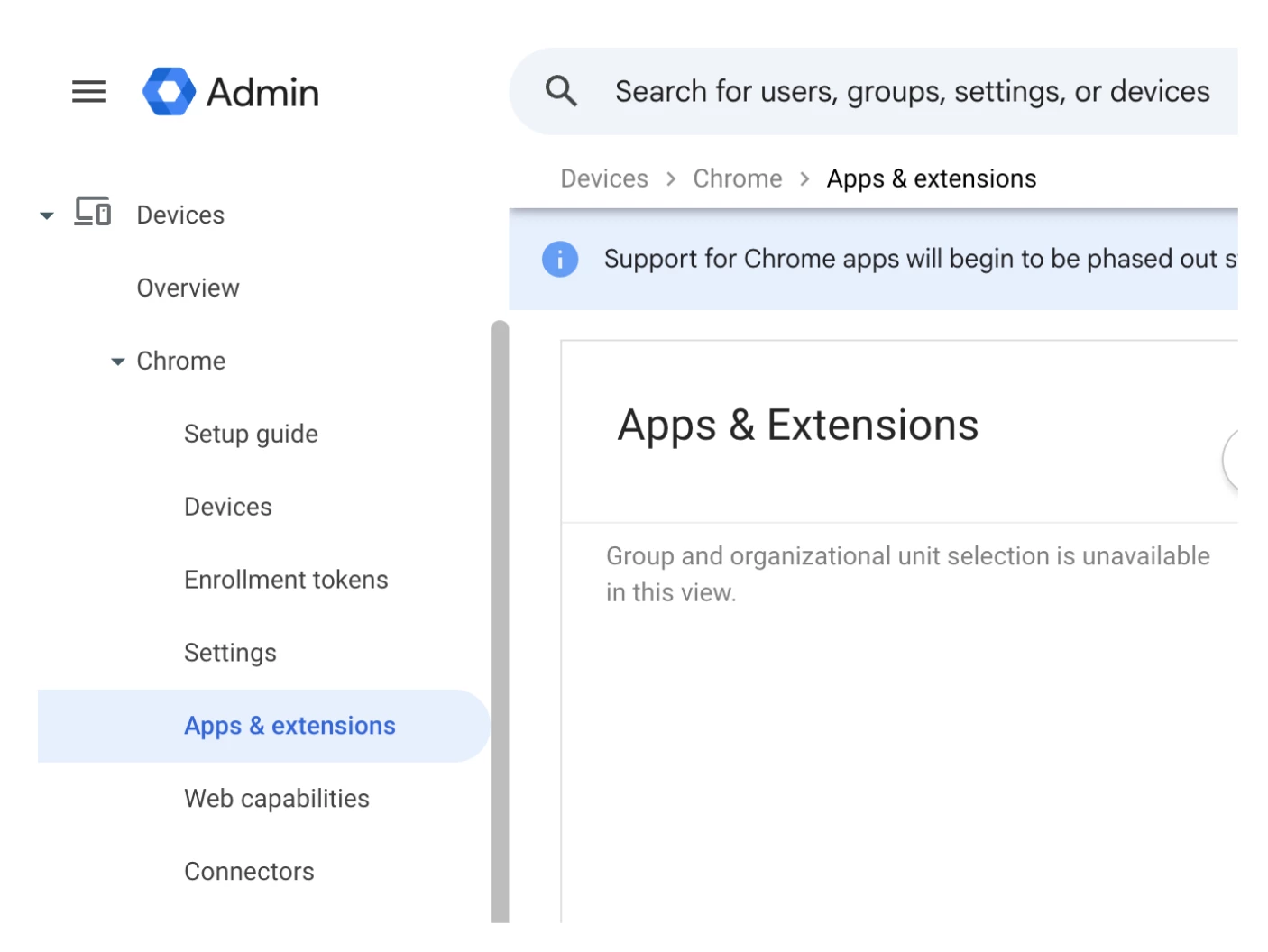
Then, you can choose between the options below by going to Devices > Chrome > Apps and extensions > User app settings and clicking on ‘Edit’ button on the Allow/block mode menu:
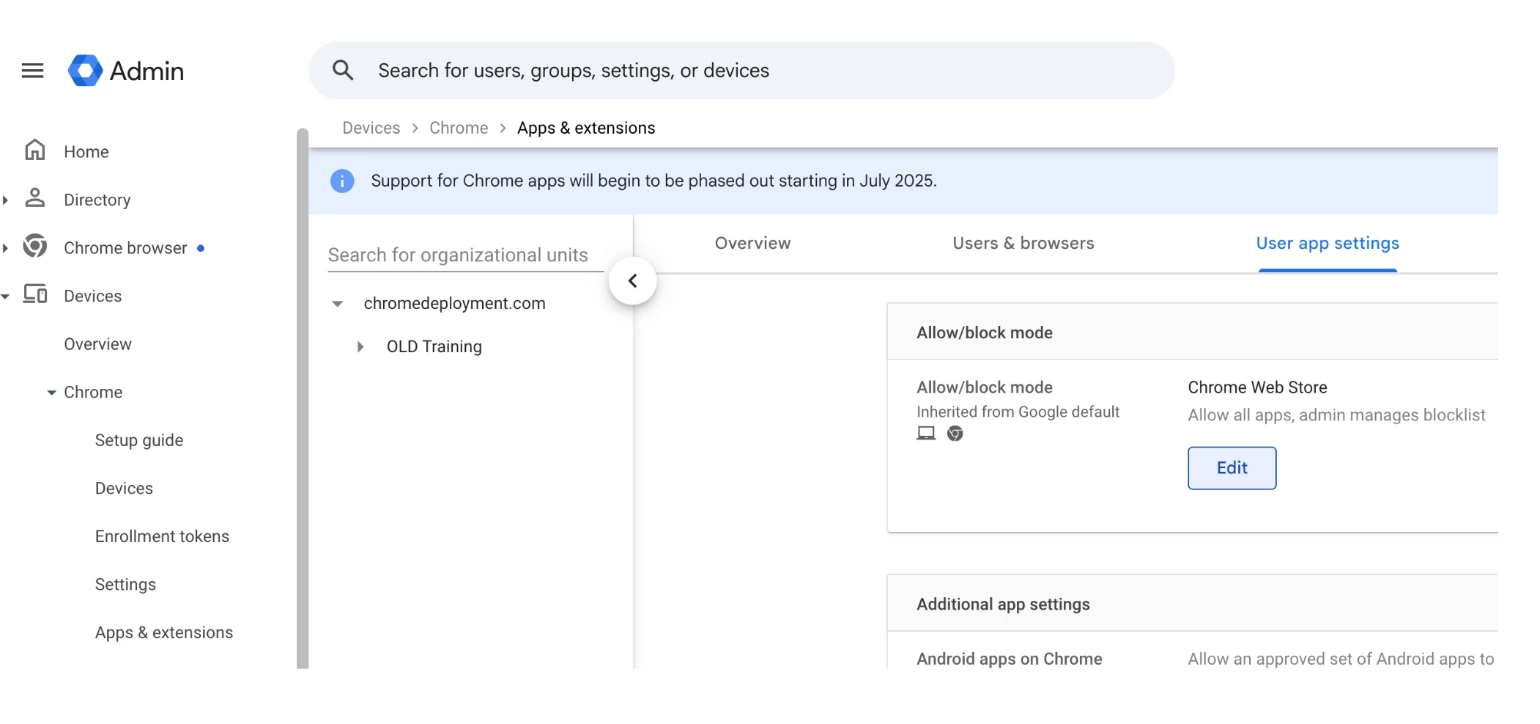
- Block all by default: Configure the policy to "Block all apps, admin manages allowlist." This locks down the browser entirely. You could also choose "Block all apps, admin manages allowlist, users may request extensions" in order to allow users to request extensions, but only permitting the installation of tools explicitly vetted and approved by IT.
- Allow all by default: Configure the policy to "Allow all apps, admin manages blocklist." This provides a lighter touch, allowing users to install what they need while IT manually blocks specific, known-bad extensions or extensions requesting risky permissions.
2. Browser Update & Version Control
A massive "instant value" win for administrators is the ability to dictate exactly how and when Chrome updates across the fleet.
Depending on your organization's needs, you can set policies to force browsers to auto-update immediately. This ensures that your workforce is always protected against the latest zero-day vulnerabilities without relying on the end-user to manually restart their browser.
Conversely, if your organization relies on a critical legacy web application that is known to break on newer versions of Chrome, administrators have the ability to "pin" a specific browser version. This allows you to temporarily halt updates for specific organizational units, ensuring operational continuity while your development team works to update the legacy application.
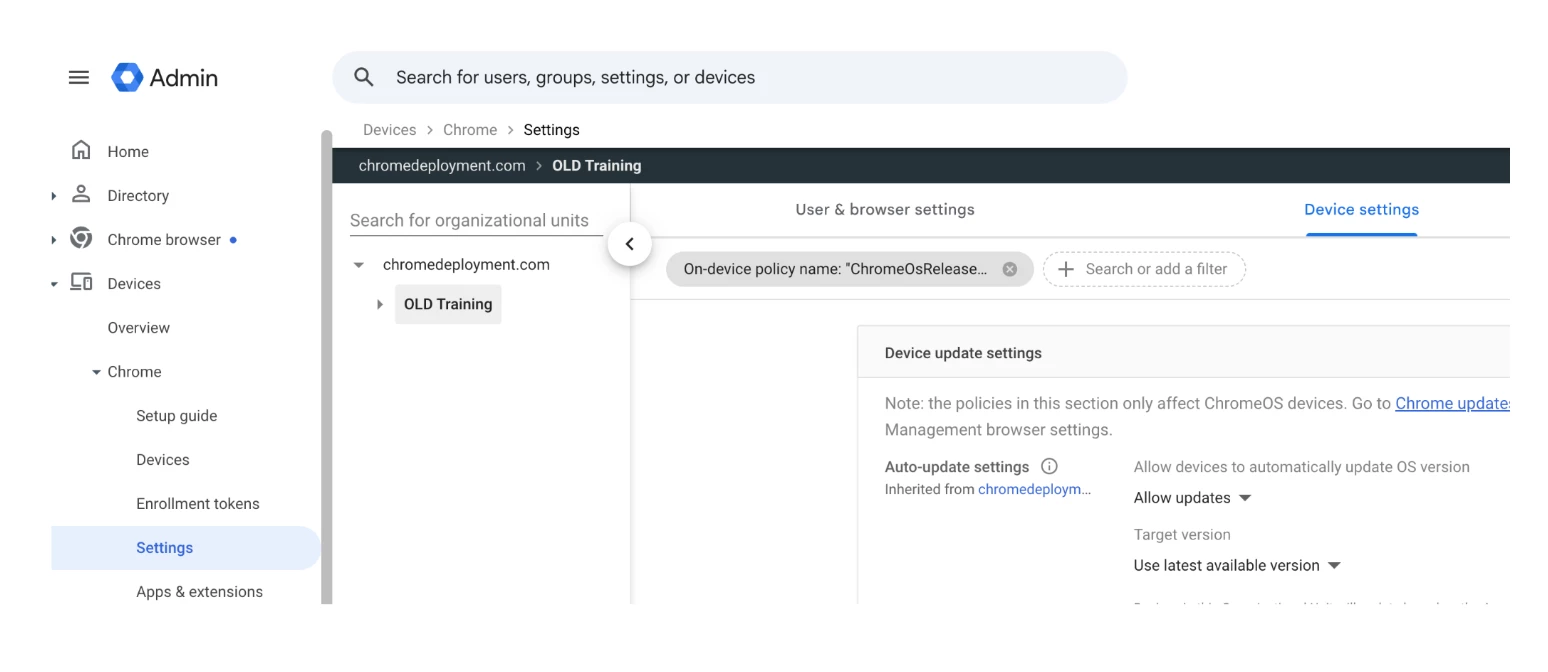
To configure your update policies:
- In your Admin console, navigate to Devices > Chrome > Settings.
- Select the appropriate Organizational Unit (OU) from the left panel and then go to ‘Device settings’.
- Search for the Auto-update settings.
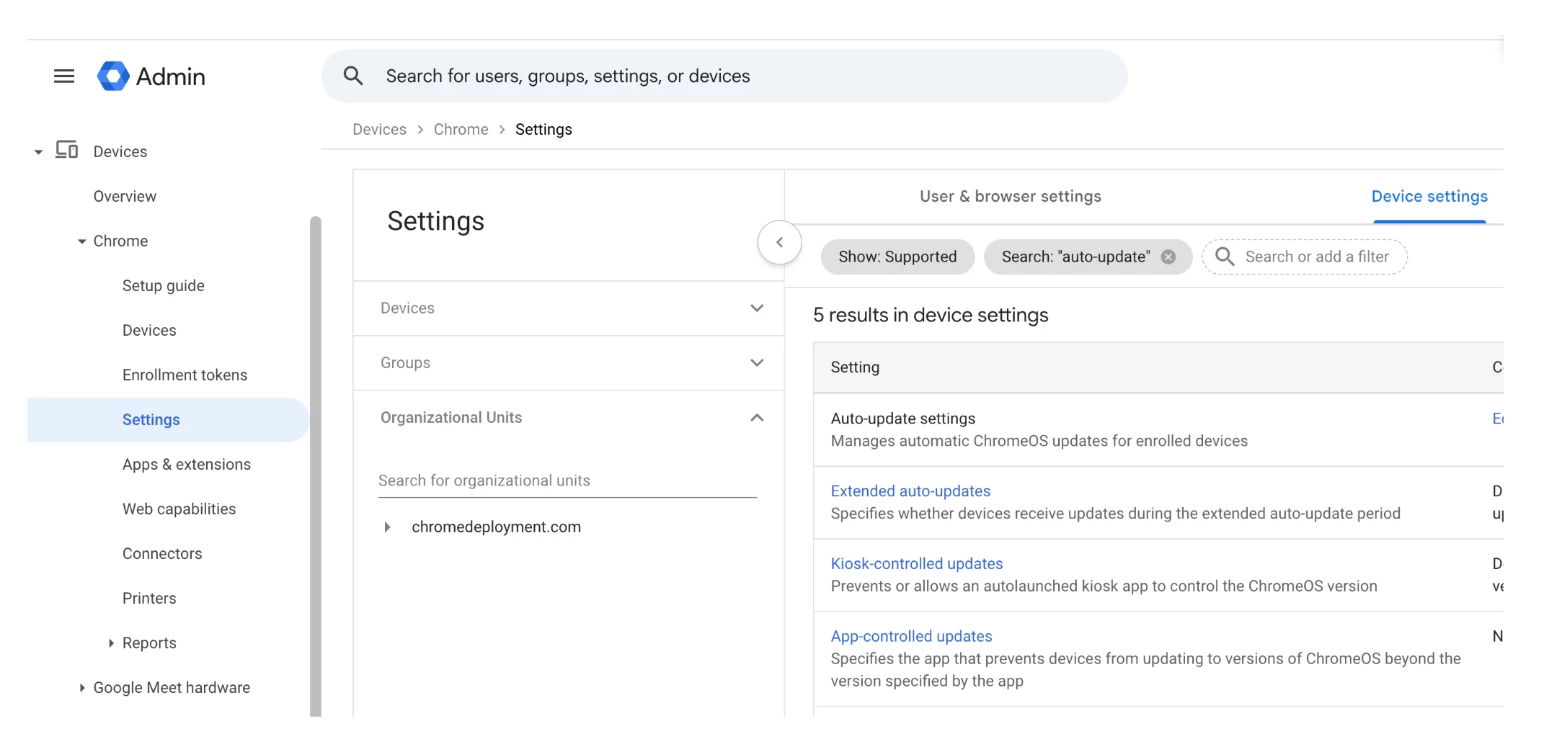
- To force auto-updates: Set the policy to allow updates so zero-day vulnerabilities are patched automatically.
- To pin a version: Use the Target version prefix setting to lock the browser to a specific Chrome version
3. Visibility & Security Insights (The "Proof" of Value)
Once you have configured your policies, you need to monitor what users are actually doing. Chrome Enterprise Core provides robust, free reporting (which must be manually enabled in the console) that acts as the "proof of value" for your security initiatives.
By reviewing Security Insights, administrators can identify risky user behavior and shadow IT. For example, the logs will reveal if users are frequently visiting sensitive domains, inputting corporate data into unapproved Generative AI tools, or downloading content into cloud storage folders outside of IT's control (e.g., saving corporate files to a personal Google Drive instead of the mandated corporate Microsoft OneDrive).
To enable and access these insights:
- Navigate to Devices > Chrome > Settings > Users & browsers.(If you signed up for Chrome Enterprise Core, go to Menu and then Chrome browser > Settings.)
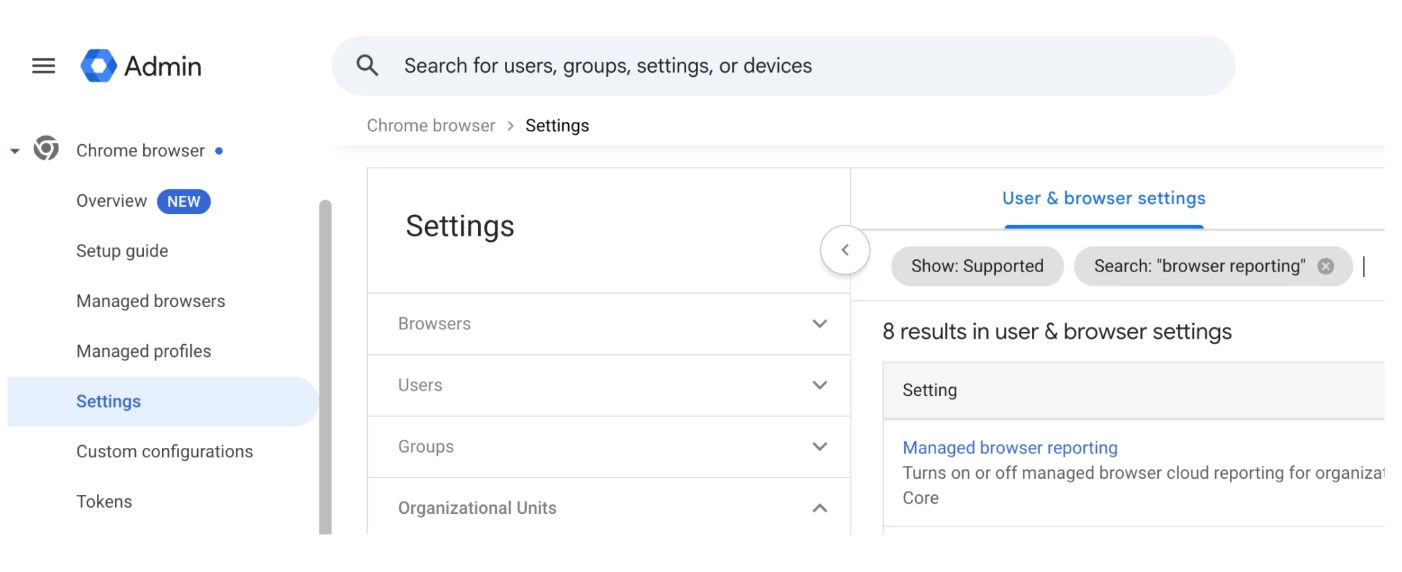
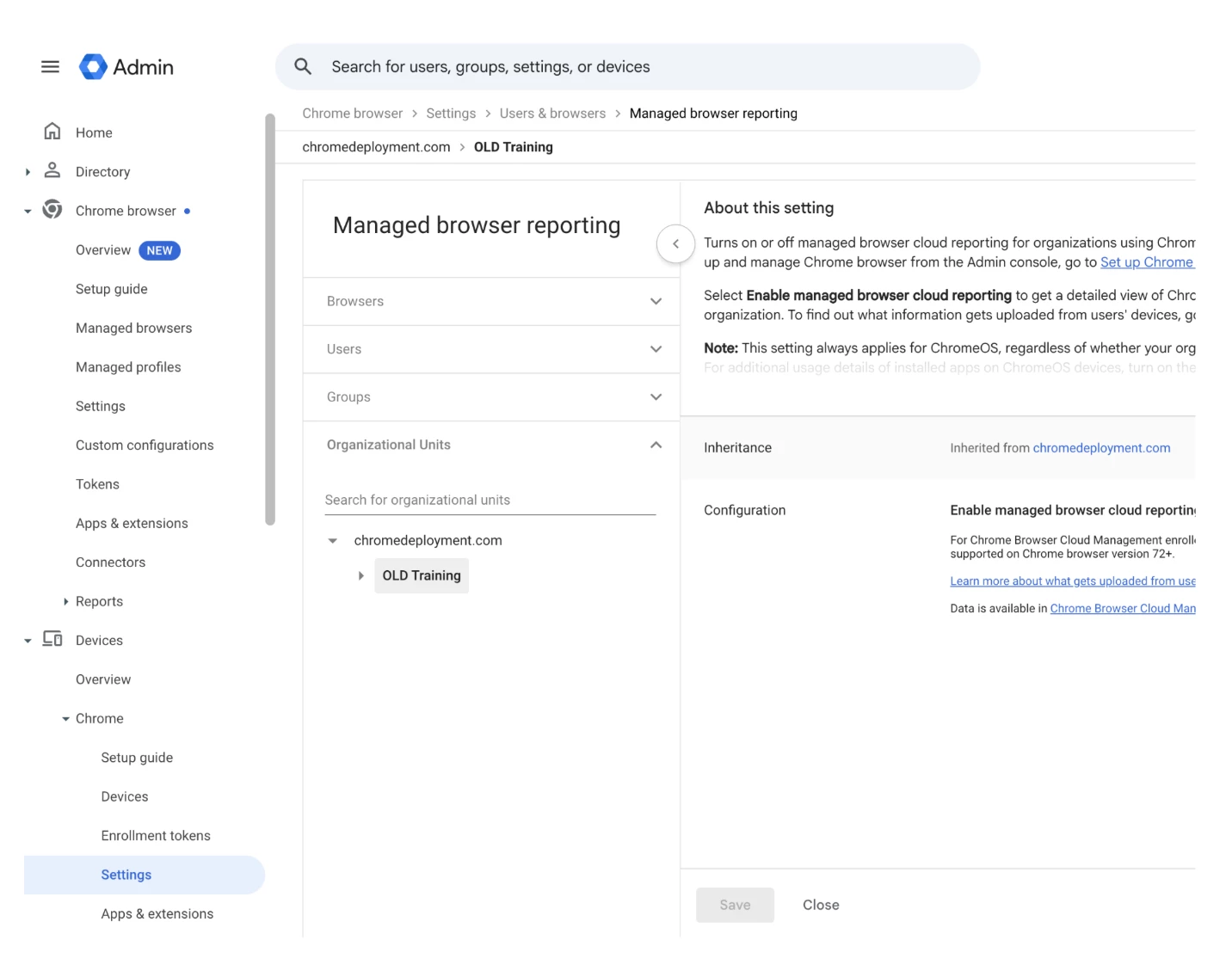
- Select your Organizational Unit (OU) > Go to Managed browser reporting > ensure Enable managed browser cloud reporting is turned on and hit ‘Save’.
- Once reporting is enabled, navigate to Devices > Chrome > Reports and select Insights.
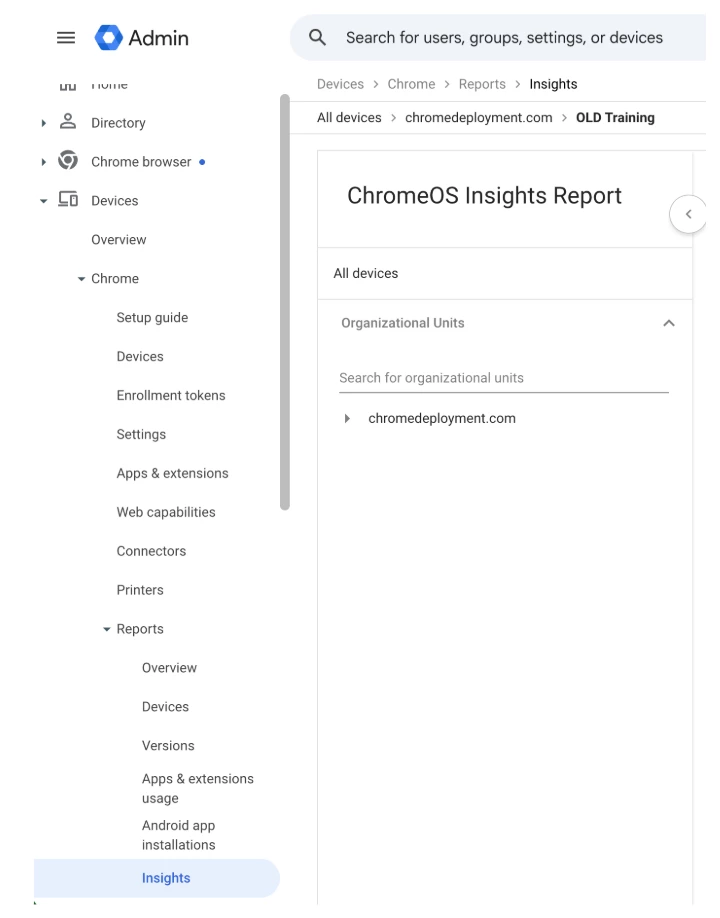
- Use the logged activity to identify data leakage risks and shadow IT usage.
This visibility is a critical coaching tool. It allows you to look at the security insights with your team, identify specific data leakage risks using the free browser management features and build a business case for the enforcement side of things available in the paid Chrome Enterprise Premium version.
Next Steps: Monitor Your FleetNow that you have set up your management policies, it is time to monitor what your users are actually doing. If you want to identify shadow IT or audit the specific permissions that third-party extensions are requesting, check out our dedicated guide on how to leverage this reporting feature: View App and Extension Usage Details Official Support ResourcesFor detailed, step-by-step instructions on configuring the policies discussed in this article, please refer to the official Chrome Enterprise documentation: |
