

[Guide] Getting started - First steps in the Communities
A very warm welcome to our Community Space! This is for everyone setting up, managing and using Android, ChromeOS, Cameyo and Chrome Enterprise for work. This is your space to connect, learn and discuss.
About the Android Enterprise Customer Community
The Android Enterprise Help Community launched in 2021 (as part of our Help Center) and with the support of a small, but mighty group of Community Product Experts, has helped to answer thousands of member questions. Our mission is to enable the community to explore areas across the Android Enterprise eco-system such as general discussions, creating tips and guides, attending events, providing feedback... and here we are! 😀
About the ChromeOS + Cameyo Customer Community
Our main goal has always been to build a platform that's simple and secure for work. However we’ve also been passionate about bringing our ChromeOS and Cameyo customers together to share ideas, get creative, and support each other. So, whether you're looking to dive into general discussions, catch up on product news, tips and guides, attend events, or share your valuable feedback, we're here to make it happen!
About the Chrome Enterprise Customer Community
The Chrome Enterprise community hosts discussions, updates, and events tailored to everything you need to successfully deploy, secure, and manage your browser environment with Chrome Enterprise Core and Chrome Enterprise Premium. 🛡️💻 This is a space designed specifically for you, IT Admins managing Chrome browsers across any device and for companies of any size.
Getting started in the community
Please check our detailed guide on the navigation and structure of this space.
Posting in each dedicated community
In the top right-hand corner, you can click on the “start post” button, located right next to your profile picture.
- Before creating a new post, use the search bar to see if there are any existing discussions which you can join or any existing resources you can check.
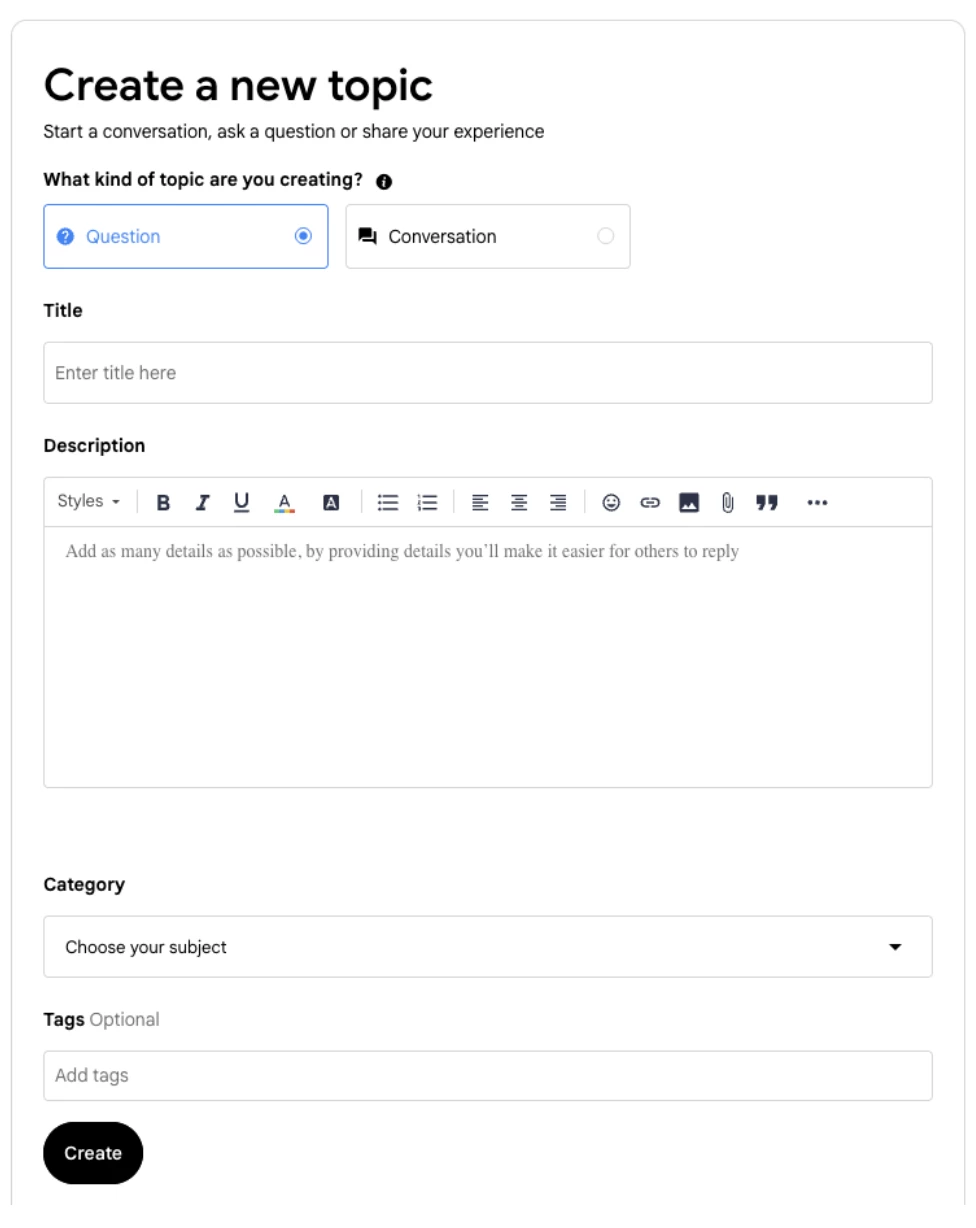
- Click on the ‘Start post’ button on each board to get the post message page, remember to add as much information to your post to make it easier for members to reply: is it a question or a conversation; which category does your post belong to, etc. Adding a tag is optional but can be helpful.
- If you want to include another member in your post or when you are replying, just press @ followed by their username and they will receive a notification about your message
Worried about any content shared in the community
If you come across a post that you feel isn’t in-line with the Community Guidelines (ie. perhaps it contains personal information) you can highlight it to your Community Team. On each post in the top right corner there is a little menu represented by 3 dots, click on this and select ‘Report’. This will send a notification only to the Community Manager and they will review.
Community Team
Lastly, we’d like to introduce our Community Team:
-
@Lizzie and @Kirk are working mainly in the Android Enterprise Customer Community -
@Rafa , @Lynda and @Emiliano are working across the ChromeOS and Chrome Enterprise Customer Communities
If you have any questions about this space or just want to say hello, we’d love to hear from you. If you want to get my attention on anything, feel free to tag us and we will get notified.
If you are not sure where to start, take a look at this introduction post and share a few facts about yourself (a great way to spend a coffee break!).
Thank you for being a part of our Customer Community.
The Community Team
