

From Overcoming Account Creation Roadblocks to Curating Your Admin Console
How to recover your domain, find your admin, and activate your licenses.
Resolve "Domain in Use" errors and activate your Chrome Enterprise Core licenses to begin managing your browser fleet.
A major roadblock during deployment is the unauthorized creation of a Workspace business account by a non-admin. This prevents the actual IT team from setting up the environment later, as the system reports an existing account but provides no clarity on the current administrator.
If you are experiencing a "Domain in Use" error during setup, follow these steps to recover your domain and activate your management tools.
Step 1: Identify or Recover the Current Admin
Before initiating a domain takeover, verify if you can locate the current administrator or recover the login details.
- Who is my administrator? If you are unsure who holds the administrative privileges, use the identify your admin guide.
- Sign in to your Admin console: Familiarize yourself with the standard sign-in process.
- Can't sign in? Review the steps for troubleshooting admin sign-in issues or specifically recovering administrator access.
Step 2: Use the Domain Recovery Tools
If the current administrator cannot be located, you must engage with the Google Workspace team to recover your domain. This requires verifying your domain ownership (see how to choose your primary domain and verify your domain) using the correct form for your situation:
- Domain in Use: Use this process when you do not know who the admin was or who created the Admin console. This path allows you to prove domain ownership and take over the existing account.
- Domain Recovery: Use this process when you know who the admin was, and you want to recover access while keeping everything within the console intact.
Step 3: Activate Licenses to See Your Tools
Once you gain access to the Admin console, you must activate your licenses to view your browser management options. Customers who sign up only as a Workspace user will not see these options by default.
- Navigate to the Billing > Buy or upgrade > Devices & Browsers section within your Admin console.
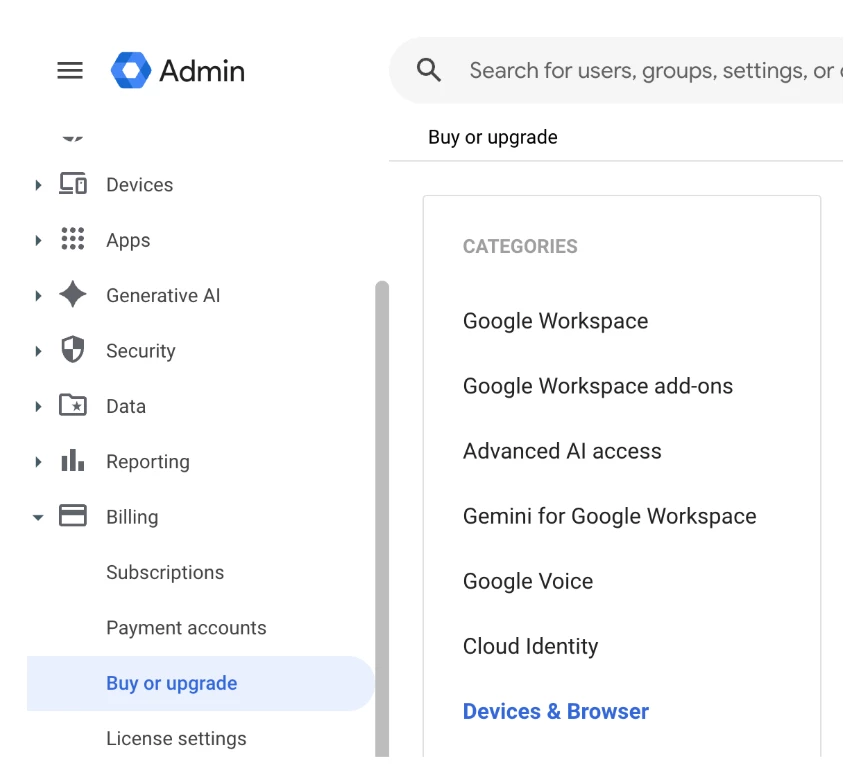
- Activate your Chrome Enterprise Core licenses.
- With the domain verified and licenses activated, your full suite of Chrome Enterprise management visibility will appear.
Step 4: Curate Your Admin Console Experience
Once your licenses are active and you access the Chrome management settings, you may find the thousands of available policies overwhelming. To find instant value and curate your setup experience, it is highly recommended that you use feature filters.
- Navigate to your Chrome browser > Settings > User & browser settings and click on the Search or Add a filter option.
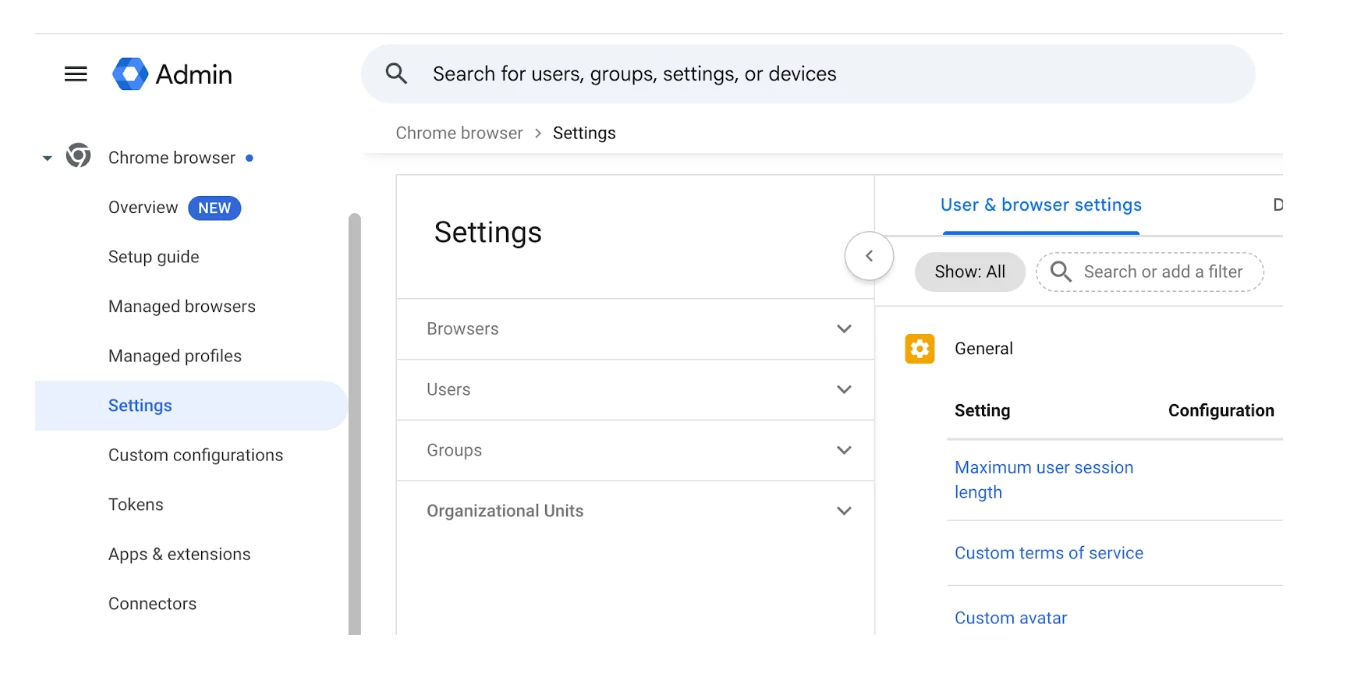
- Search for the Popular settings filter. This instantly reduces the list to the most commonly used configurations.
- Optionally, you can also filter by Platform. Search for Chrome for desktop, Chrome for Android, and Chrome for iOS. This removes ChromeOS-specific features, which is ideal if the majority of your workforce operates on Windows and Mac devices.
By applying these two filters, you can reduce the list from thousands of policies down to a manageable set of around 70 highly relevant settings. This allows you to easily review, configure, and curate your enterprise browser management experience.
Want to learn more? Check our First Steps with Chrome Enterprise Core guide.