

Set Chrome policies for users or browsers
When securing Chrome with Enterprise Core or Premium, you can choose between two management approaches: manage via profiles and manage the browser. This guide outlines how to enforce Chrome policies via the Google Admin console for user accounts and enrolled browsers.
Step 1: Manage via Profile or Browser
The "Manage via profiles" approach targets non-corporate-owned devices, managing only the corporate Chrome profile when the user signs in with company credentials.
Requirements: To apply policies, users must have managed accounts in your Google Admin console (e.g., with Google Workspace, Chrome Enterprise licenses, or Cloud Identity). Furthermore, policies can only be applied to user accounts that are part of a domain-verified account; if you are using an email-verified account, you must verify your domain to unlock this feature.
The "Manage the browser" approach, for corporate-owned devices using an Enrollment Token, manages the entire Chrome browser and all profiles (corporate, personal, guest, and incognito) on that device, without requiring a profile sign-in. These policies will apply to your Enrolled Browsers.
Understand When Settings Apply
Exactly when your Chrome policies are enforced depends on whether you set them for user accounts or enrolled browsers.
| Policies Set for Users | Policies Set for Enrolled Browsers |
| Enforcement: Applies when users sign in with a managed Google Account on any device (Windows, Mac, Linux, Android, or iOS). Does NOT Apply: When users sign in to personal Gmail accounts or use Guest mode on a Chromebook. Best For: Work settings and preferences that should sync across devices (e.g., work apps, home tabs, and themes). | Enforcement: Applies when users open Chrome browser on a computer where the browser is enrolled (Windows, Mac, or Linux). Best For: Policies you want to enforce at the device level, such as security settings and blocked apps. |
Step 2: Configure Settings in the Admin Console
Before you begin, ensure you have the Mobile Device Management administrator privilege.
| 1. Sign In Log in to the Google Admin console | ➔ | 2. Navigate Devices > Chrome > Settings | ➔ | 3. Configure Select Scope & Apply Policies |
- Sign in to the Google Admin console.
- Go to Menu > Chrome browser > Settings.
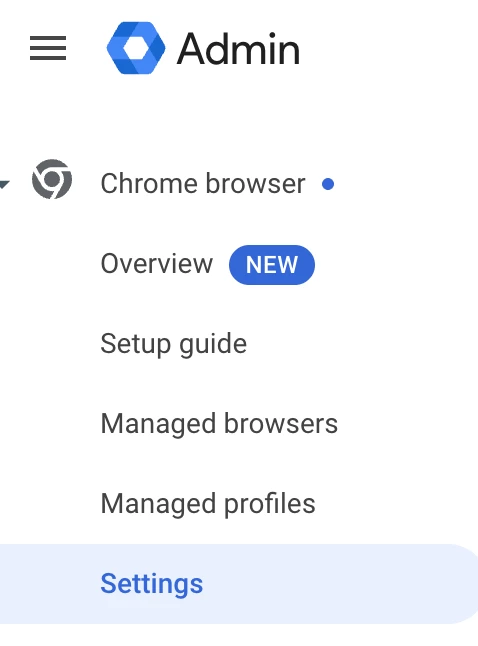
- Select Scope: On the side panel, select an Organizational Unit (OU) or a configuration group.
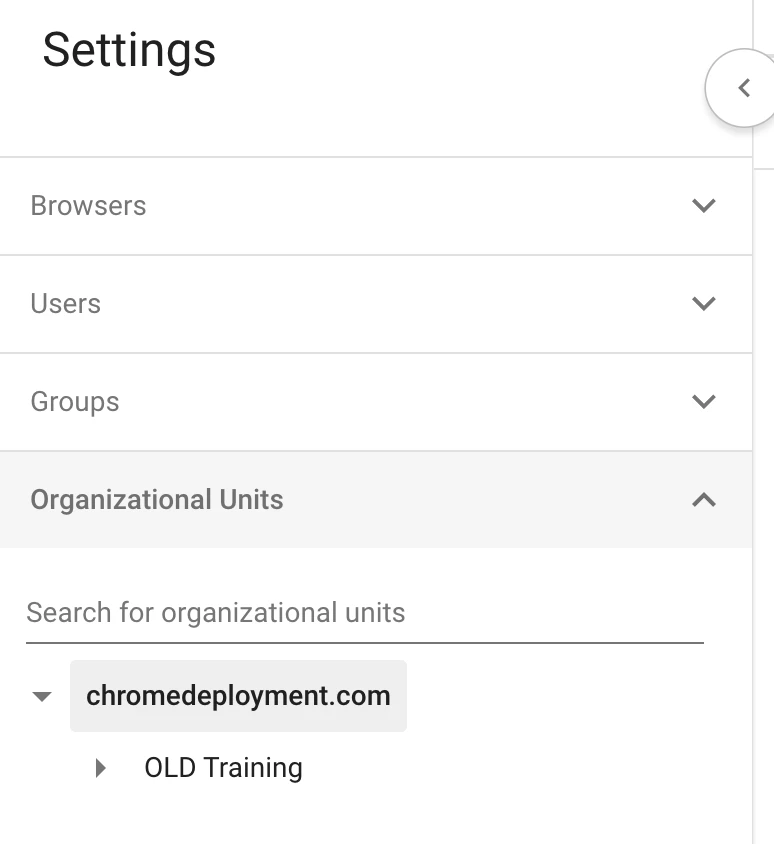
- Find a Setting: Scroll to the desired setting or use the search box at the top.
- Configure: Click the setting and choose your configuration.
- Inherited: Setting is coming from a parent OU.
- Locally applied: Setting is overridden for this specific OU
- Save: Click Save or Override.
Step 3: Natural Language Processing (NLP) Search
When searching for settings, you do not need to remember exact policy names. You can search using plain English descriptions. Google's AI interprets descriptions to find helpful answers.
Example: Searching for "improve device accessibility" will surface settings like Accessibility control and Accessibility shortcuts.
Step 4: Common Setting Categories
The Admin console allows you to configure a wide range of browser behaviors:
| Category | Settings Overview |
| General Settings | Set maximum user session lengths, custom Terms of Service, custom wallpapers, and organization branding (name and icons). |
| Sign-in Settings | Force users to sign in to use the browser or restrict sign-in to specific domain patterns (e.g., .*@example.com). |
| Mobile Policies | Choose whether to apply supported user settings to Chrome on Android and iOS devices. |
| Enrollment Controls | Control whether users can add asset IDs during enrollment or require managed users to enroll unowned devices. |
| Hardware/Security | Manage DNS-over-HTTPS, JavaScript JIT compilation, and Clipboard access permissions. |
Step 5: Verification
Settings typically take effect in minutes but can take up to 24 hours to apply for everyone. Users can check applied policies by navigating to chrome://policy within their browser.
| Note: Many administrators leave the default settings and only configure essential items such as startup pages, apps/extensions, and security themes. |
Official Resource: Set Chrome policies for users or browsers - Google Support