management
223 Topics
2FA sign in error at Android Zero Touch portal
I am the IT admin/owner of our Android Zero Touch instance, and I am trying to log into the portal to view and interact with devices associated with our organization. Our zero touch instance is linked with our Intune tenant, and is working correctly. I keep getting the error that my sign in was rejected because it doesn't meet my organization's 2 step verification policy and to contact my IT admin for more information. I am that IT admin, and I can't login. My login information is correct, I have our account ID, and I'm just trying to get in touch with someone to help with the login. I can't even login to support portal to get help, so I had to use my personal Google account to post this.20Views0likes0CommentsCompliance project for Android?
Hi all, For Apple (iOS/MacOS ) we use the macos security compliance project tooling (https://github.com/usnistgov/macos_security#readme) for mapping compliance guidelines. A short summary: The macOS Security Compliance Project (mSCP) is an open‑source framework that provides automated, customizable security guidance and baselines for macOS, producing documentation, audit checklists, configuration profiles, and remediation scripts. It supports major security standards, including NIST SP 800‑53, NIST SP 800‑171, DISA STIG, CNSSI 1253, CIS Benchmarks, CIS Critical Security Controls v8, CMMC 2.0 Levels 1–2, and the Netherlands BIO baseline. I haven't found such a project for Android, as anyone aware of such a project that maps security guidelines to available API's for Android Enterprise? Michel16Views1like0Comments
Play Protect Blocking Custom DPC Apps — How to Get Approval or Alternatives?
Hi everyone, I'm a developer who helps enterprises build custom DPC (Device Policy Controller) Reference Documentation apps to manage Android devices based on their unique requirements. Recently, Play Protect has started blocking the installation of custom DPC apps, even when these apps are signed and used internally. The warning claims the app may pose a risk due to access to sensitive data - even though it's strictly for enterprise use. To make things more difficult: Google is no longer accepting registration of custom DPC apps with Android Enterprise, which limits official distribution and management options. Android Management APIs don’t support all use cases, and also have quote limit. I’ve applied twice to join the Android Enterprise portal to build a SaaS-based device management platform, but both requests were rejected without a clear reason. My questions for the community: Is there any official way to get a custom DPC app approved or whitelisted by Play Protect? Are there any alternative ways to manage Android devices at scale (outside of AMAPI or legacy EMM)? How can new developers or startups gain access to Android Enterprise features when onboarding is currently restricted? Any help, direction, or shared experience would be greatly appreciated. Thanks, KulwinderSolved1.7KViews6likes18Comments
Issue with Android Enterprise provisioning: afw#identifier invalid and Play Protect blocking app during QR enrollment
We are an organization using a third-party MDM / Device Policy Controller (DPC) solution to manage our Android Enterprise devices. The DPC application is published on Google Play and has been working for managed provisioning. Recently, we started facing issues during Android Enterprise enrollment, and we are seeking guidance on the correct and supported setup. Issues observed 1. afw#identifier enrollment When attempting enrollment using afw#<identifier>, the setup fails with errors such as invalid token, wrong setup, or unable to continue enrollment. This previously worked and now fails consistently, even though the DPC remains published on Google Play. 2. QR code–based provisioning When using QR code provisioning, the device completes initial setup but then Google Play Protect shows “App blocked by Play Protect” for the DPC. The DPC app is Play-approved and not sideloaded by end users. We have already submitted a Play Protect appeal through the official appeal form. 3. Distribution method For QR provisioning, the DPC APK is currently hosted on our own HTTPS server, and the QR includes: Device Admin component SHA-256 signature checksum Secure download location Despite this, Play Protect flags the app after provisioning. Clarifications we are seeking Are there recent changes or requirements for afw#identifier enrollment that could cause invalid token or setup errors? Does Play Protect apply additional checks during QR-based provisioning, even for Play-approved DPC apps? Is using a self-hosted APK download location still supported for Device Owner provisioning, or is Managed Google Play / Zero-Touch enrollment now required? Is there a supported way to allowlist or whitelist a legitimate enterprise DPC app so it is not blocked during provisioning? Are there recommended best practices for third-party MDM providers or enterprise customers to avoid Play Protect blocks during enrollment? We are not attempting to bypass Play Protect or supported security mechanisms. We want to ensure our Android Enterprise setup follows current Google-recommended practices and understand the correct approach going forward. Any guidance or clarification from the community or product experts would be appreciated.159Views0likes4Comments
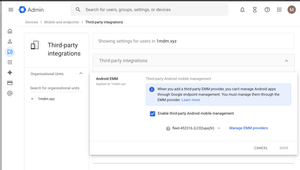
Enable third-party Android mobile management
Hey Android Enterprise community, I'm trying to understand what the "Enable third-party Android mobile management" checkbox in Google Admin does. How does this affect situations where multiple Android Enterprises are bound to multiple EMM solutions? Will both Android Enterprise continue working if they are bound to different EMM solutions, even if only one is selected on the screen above? If I use the Enrollment token link method to provision a device and have no users in my Google Workspace, will switching the EMM provider in the dropdown below the checkbox have any effect? Also, does Authenticate Using Google affect provisioning if there are no users in Google Workspace? Thanks, MarkoSolved225Views0likes7Comments
ZTE Enrollment Profiles Issue
Greetings everyone! New day, new challenge. I’ve received a number of Zebra tablets. We already use ZTE, which works fine, but as you know it assigns devices to a single profile based on the serial number. The issue is: These tablets (same model) will be used for many different purposes, and I don’t think it’s efficient to take each device out of the box, read the serial number, and manually assign it to a different ZTE profile. I could easily end up managing 200 different profiles. So my question is: Is there a way to let the device choose which group or category it should belong to during enrollment? For example, during setup the device could ask the user which category it belongs to and based on that selection it would automatically join the correct group and receive the appropriate configuration. Is this possible? Or am I dreaming? 😄 Has anyone faced this issue and found a good solution? Thanks in advance!113Views0likes13CommentsUrgent: No response on AMAPI Quota Increase Request after 7 days (Project ID: [zztcdc])
Hello Android Enterprise Community, I am reaching out to seek assistance regarding a quota increase request for the Android Management API. The Issue: Our project has reached its current AMAPI quota limit, which is now impacting our production environment and device deployment. We submitted the official [Quota Increase Request Form] exactly 7 days ago, but we have not yet received any response or confirmation from the Google support team. Project Details: Project ID: [zztcdc] Impact: We are currently unable to enroll new devices or sync policies for our enterprise clients, causing a significant disruption to our business operations. We understand that these requests take time to review, but given the 7-day silence and the critical nature of our deployment, we would greatly appreciate it if any community manager or Google representative could help check the status of our request or escalate it. Thank you for your time and help! Best regards, [Yichen International Trade & Technology Limited]61Views0likes3Comments
Option for MDM to place app shortcuts on home screen
We have a great wish to place shortcuts for specific apps on the home screen when the app is installed (or at a later point), but this doesn't seem to be possible. When we discuss this with our MDM provider (SOTI), we are told, it is a Google/Android limitation, and this seems a bit strange to me; is it really not possible to place shortcuts on the home screen to your own liking? I hope this resonates with others - or even better; that I can be corrected, and there is a smart and easy way to achieve this goal. We run all our Android devices as fully managed, if that is relevant.255Views2likes28Comments
Android Zero Touch Portal - Owner Account changed to Admin after adding another User
Hey Team, I was trying to add another user as Admin in our Zero Touch Portal. However, post adding the user, my Owner Role was downgraded / changed to Admin. How do I get the Owner Role back to my account. Thanks in advance. (This post was edited to remove personal information, in compliance with our guidelines)54Views0likes1Comment
Android Expert Forum & Feature Request
Hey As I saw that bunch of question have been left unanswered on the expert forum is no one at Google monitoring the feed? I just wanted to post it here as the conversations seem to get more traction here. Is there official thread where feature request could be sent, I have been supporting mobile device management over way over a decade and in that time I have seen all sorts of things and there would be some features that would help greatly in managing enterprise environments with Android. Couple examples: It would be great if there would be a way to deploy some contact numbers to the devices on device address book, such service desk or onsite support number. This is especially needed for dedicated devices which usually do not have any email accounts associated with them and getting common contacts deployed to all devices is quite labor intensive with the current tools. Another one is the OS update management, which is lacking quite a bit, especially as I need to do a comparison to Apple and how their new OS update delivery works, it just makes the Android one lack in features. I would really want to see that on enteprise owned device we would have an override for downloading the OS updates via mobile data, as this is huge pain point when wi-fi networks are not available on some sites, and if the end users are not the most technically savvy, it would allow us admins to at least keep the fleet to some what up to date, obviously there still would probably be some issues, but the current status of the OS update policies is lacking. Also not sure should the update installation recognize on going phones calls when it is set to do the updates in automatic mode? As initially when we tried to apply it we got bunch of notifications that the updates where triggered during a phone call. /rant Thanks,29Views0likes0Comments