Recent discussions

Is there any way to disable Google Play Protect (GPP) from an EMM or to otherwise whitelist apps from scanning?
I am very concerned about the Enhanced GPP features coming soon that are currently being piloted in other regions. https://security.googleblog.com/2023/10/enhanced-google-play-protect-real-time.html This is not a welcome feature whatsoever for the fully managed space where we have business apps written internally that are being installed on business devices, owned by that business. In no way do we want Google sitting in between deciding whether a very legitimate app written internally for an organization should be installed on devices that are purchased and owned by the same organization on fully managed devices. I would like a way to disable GPP completely, or at a minimum whitelist applications from scanning as we don't want Google interfering in the business operations. GPP is a helpful consumer protection features but fully managed devices should have the ability to be opted in or out of the program. Otherwise GPP can incorrectly flag a mission critical app and disable or remove it from a device, thereby bringing down a line-of-business application and an end customers operations. While the intentions of GPP are good, by blocking business apps Google themselves is becoming the malicious actor that GPP is ironically trying. to prevent.Solvedmattdermody2 years agoLevel 3.0: Honeycomb41KViews17likes58Comments
Android 15 - Cannot set default password app
We use Microsoft Intune to manage devices. For the devices which have upgraded to Android 15, the end users can no longer select Microsoft Authenticator as their default application for auto filling passwords. I cannot find any settings in Intune to allow it. All devices are fully managed corporate owned devices. The devices are all Google Pixel 8 or 8a devices. Is this a bug in 15 or am I missing something?tngvmd2 years agoLevel 1.6: Donut9.6KViews15likes57Comments[Day 1] Community festival: Highlighting 3 great resources of information for the Android Enterprise community
Hi Android Enterprise community ! As an IT professional with focus on securing and managing different types of devices for customers all over the world, its important to keep up with the changing landscape and be on top of whats going on in the different ecosystems that exist out there. In this post I want to highlight 3 things that I think has had the greatest impact for me and my customers and that I would recommend anyone working within this field to keep an eye on. Android Enterprise Community discussions highlights There have been a lot of great conversations in this community for the past year and I wanted to mention a few that stood out for me and the impact of the community. I'm a strong believer in that whats makes a great product is also the community around it. Being able to interact directly between users using the product, developers and Program Managers working on the product makes the product better. https://www.androidenterprise.community/t5/general-discussions/is-there-any-way-to-disable-google-play-protect-gpp-from-an-emm/td-p/2507 https://www.androidenterprise.community/t5/service-announcements/partial-fix-some-management-policies-are-made-permanent-on/ta-p/1494 https://www.androidenterprise.community/t5/admin-discussions/distributing-paid-apps/td-p/653 Android Enterprise Academy https://info.androidenterprise.training One of the best resources I've encountered in my path to learn and understand what Android Enterprise is from a conceptual perspective to more in-depth technical is without a doubt the free training and certificate program under Android Enterprise Academy. There are 3 levels of certification Associate Professional Expert I keep going back to the training from time to time when I need to refresh my memory and I can't say that about a lot of other trainings I've done through out my years. That to me shows how good the quality of the training is. For me who has in the past created a lot of training material and also taught technical classes its important to understand that people are different in how they learn and are able to process information and I find that the training offered here manage to address that with the confinement of online training. Developer documentation 3rd but not least, I want to highlight to the developer documentation. I'm an IT Professional but not a developer, however this has not stopped me from getting value from the developer documentation. https://developers.google.com/android/work/tools https://developers.google.com/zero-touch/guides/overview When it comes to Android Enterprise I have found myself many times going to the developer documentation to understand certain features and in what version of Android they were introduced or trying to understand what is needed to use the features in troubleshooting purposes. Maybe there's a need to create a service request or Incident to your EMM or directly to Google, adding information that could help that points to the documentation is often valuable information that could expedite the handling of the ticket. Are there any discussion that stands out for you ? Or do you have any tips or great resources you want to share ? I want to give a special thanks to Lizzie for all the great work she does here and all the other community members that takes part in the discussions here. Timmy Andersson Device management expert & Freelance consultant www.timmyit.com https://www.linkedin.com/in/timmy-andersson-61408292/Timmy2 years agoLevel 2.0: Eclair1.1KViews11likes5Comments[Day 1] Mobile Devices With a Sixth Sense: What Android Can Learn From Detection Dogs
Good afternoon everyone! Intro Alongside my passion for Android, which I’ve also made my profession, I spend a lot of my personal time working on scent detection training with dogs. Over the years I’ve trained my own dogs to search for items such as data carriers, phones, cannabis, and most recently one on cash. I wanted to participate in the festival because I had to skip the opportunity last year. But to contribute meaningfully, I wanted to create something that connects both worlds, Android and my other interests. This article is the result of that cross-pollination. The article is just a different perspective to discuss, a thought I had and a look in to what I think could be a good future. Android & detection / search dogs Enterprise mobility is still too often reduced to policies, profiles, and compliance checkboxes. A device shows compliant, an app is locked down, and the job seems done. But anyone who has worked with a well-trained detection dog knows that control is only half the story. The real value comes from analyzing behavior and context, and the ability to anticipate on what’s coming. Fun fact: Our nose, and a dogs nose, contain olfactory receptors, nerve cells that detect odor molecules, which is what we use to recognize a scent. An average human has around 2 to 6 million of those. A dog’s nose has around 250-300 million. They are capable of detecting so much more scents than we do. A detection dog doesn’t just smell an object. It smells the contents, the ingredients of what it’s made of and It detects deviations. It recognizes not only what is present, but also when a situation doesn’t match the pattern it expects. If something has disturbed the soil, it will recognize that. And as a handler you should be able to read to signals and act on it. If you want to go right, and the dog is showing that it recognizes a scent on the left, you should really go left and trust the signals your dog is sending you. As a dog handler I’m trusting my dog to make the right decisions, I just follow and guide the dog where needed. Lift him to higher grounds, or maybe mark areas of extra interest that I can see and I’ve been told to search. Its teamwork. Devices as Sensors Imagine a device that doesn’t only enforce policy but also understands what normal looks like in its environment. Not only checking whether something is allowed, but noticing when something is unexpected. A phone that has spent months connected only to Wi-Fi inside the warehouse but suddenly appears on 4G at two in the morning in another city, that may not be a direct policy violation, but it is something you and I would ask questions about. Any detection dog would pause, tilt its head, and quietly signal that something’s off. The ingredients to make devices smarter already exist. Smartphones capture motion, location, battery patterns, network behavior, app usage, and user interaction. Individually these are datapoints, but together they form a pattern, just like scent particles form a track for example. The interesting part is: the hardware has been ready for years. What we lack is interpretation. Fun fact: Did you know that when a dog is searching/sniffing, it can inhale and exhale up to 300 times per minute? If we would do this, we will start hyperventilating within seconds. I think Android could evolve in the same direction by learning baselines of enterprise-normal rather than relying solely on static policies. Once a baseline exists, devices can flag changes proactively, early before things escalate. An example Consider a warehouse worker scanning goods along the same aisle, during the same shift, using the same three apps every day. Android sees that, learns it, and identifies it as normal. But one Monday everything is different: roaming is active, a new route is taken, unfamiliar apps are running. Instead of asking only is this allowed?, the device could ask is this unusual?, should I report this?, is this risk or intentional deviation? As an IT admin, you could check those signals and take appropriate action. But maybe we want Android Enterprise to take their own actions up to a certain degree? This isn’t just security, it also improves stability, efficiency and less downtime. Combine all these and you might even have an employee who is actually happy with the work IT is doing. Instead of being the team who keeps blocking things, you become the IT admin that makes the devices just work when they need to. Closing note I am aware of different MDM’s providing such solutions such as WS1 and Knox Asset intelligence. But I think it could and should be so much better than that. It should be part of core Android OS, present for everyone, not just the one who can afford it but also the smaller companies with less budget. It shouldn’t be depending on a third party whether or not this works. Android Enterprise has matured. Policies are essential, but they’re not the finish line. The real opportunity lies in devices that understand normal, and detect subtle deviations before users even notice. Maybe it’s time our Android fleets developed a sense of intuition. Maybe it's time for Android fleets to develop their own sixth sense like a detection dog that quietly sits, nose raised, because it notices something no one else does yet.Michel6 days agoLevel 4.0: Ice Cream Sandwich176Views11likes11Comments[Guide] First aid for bug reports
Hi! Mobile devices are quite complex and fast- changing. Errors sometimes sneak in and as a UEM administrator you often have to find a solution. If in doubt, the UEM manufacturer is the first point of contact, but if it is an app or OEM-specific error, a ticket to the right place can also speed up the solution. In addition, any support team will appreciate it if you look into the problem before creating a ticket, provide specific log files and perhaps even roughly narrow down the problem. But... How? The commands for logs and the sheer mass of log lines can be quite overwhelming! In this topic I would like to provide some information about logging for Android Enterprise, which will hopefully help some of you in the future. I will not cover all commands or segments in log files. If there is something that you think is important for logging, please feel free to add it. 😀 ADB - Android Debug Bridge Get the tools The ADB is a versatile command-line tool with which you can execute commands on a device. The adb and USB debugging on the mobile device are essential for detailed debugging. https://developer.android.com/tools/adb If you are not a developer, you do not need to install the entire Android Studio. The SDK Platform Tools are very useful and fully sufficient for logs. You can download the tools for Windows, Mac and Linux here: https://developer.android.com/tools/releases/platform-tools Prepare the device In order to access the device with the adb, “USB debugging” must be enabled. The setting can be found in the developer options, which are hidden by default. The build number must be tapped several times in the device settings until the message “You are now a developer!” appears. Now you can enable “USB debugging” in the developer options. The paths may vary depending on the OEM: Settings > About phone > (Software information) > Build number Settings > (System) > Developer Options > USB debugging Using the adb Check and select connected devices Navigate on your PC with the command line to the folder with the platform tools. With every adb command, the client checks whether the adb server process is running. If not, it will be started automatically. “adb devices” is useful as the first command. The adb server is started and already connected devices receive a query as to whether USB debugging should be trusted with this computer. PS C:\platform-tools> adb devices * daemon not running; starting now at tcp:5037 * daemon started successfully List of devices attached 3C261JEKB15011 unauthorized Trust the connection on the device: PS C:\platform-tools> adb devices List of devices attached 3C261JEKB15011 device You can use the -l option to display further device information. PS C:\platform-tools> adb devices -l List of devices attached 3C261JEKB15011 device product:akita model:Pixel_8a device:akita transport_id:1 If you need to connect multiple devices, you can use adb -s serialnumber to select a specific device for the command. This is not necessary if you have only connected one device. PS C:\platform-tools> adb -s 3C261JEKB15011 bugreport /data/user_de/0/com.android.shell/files/bugreports/bugrepo...le pulled, 0 skipped. 29.1 MB/s (13935432 bytes in 0.457s) Bug report copied to C:\platform-tools\bugreport-akita-AP4A.241205.013-2025-01-09-13-23-16.zip shell commands With adb shell you can execute commands on the device. You can find a more comprehensive overview of the commands here: https://developer.android.com/tools/adb#shellcommands device users With Android, features such as the Work Profile, Private Space or MultiUser functionality are separated using “User”. You can list which users are active on the device: PS C:\platform-tools> adb shell pm list users Users: UserInfo{0:Owner:4c13} running UserInfo{10:Work profile:1030} running UserInfo{11:Private space:1090} Android has multi-user support, where different people can use one device: https://developer.android.com/work/dpc/dedicated-devices/multiple-users This feature is optional for OEMs. For example, an OEM may have enabled multi-user for a tablet but disabled it for smartphones. The Work Profile is a special rule and does not fall under this limitation. Up to 3 additional users PS C:\platform-tools> adb shell pm get-max-users Maximum supported users: 4 No Multi-User support PS C:\platform-tools> adb shell pm get-max-users Maximum supported users: 1 list packages You can use adb shell pm list packages [options] filter to show the apps installed on the device and optionally filter them with options and text filters. Options: -f See associated file and file path -d Filter to only show disabled packages -e Filter to only show enabled packages -s Filter to only show system packages -3 Filter to only show third-party packages -i See the installer for the packages (e.g. com.android.vending = PlayStore) --user user_id The user space to query. Examples: Show non-system apps (/ manually installed) in Private Space PS C:\platform-tools> adb shell pm list packages -3 --user 11 package:org.bayton.packagesearch package:de.heise.android.heiseonlineapp Check whether an app has been sideloaded in the personal space PS C:\platform-tools> adb shell pm list packages -3 --user 0 -i package:com.airwatch.androidagent installer=com.android.vending package:com.maxrave.simpmusic installer=com.google.android.packageinstaller package:com.google.android.keep installer=com.android.vending Show the full path of system apps that have “manager” in their name “priv-app” in the file path is an indicator that the app has privileged permissions. https://source.android.com/docs/core/permissions/perms-allowlist PS C:\platform-tools> adb shell pm list packages -s -f manager package:/system_ext/priv-app/StorageManagerGoogle/StorageManagerGoogle.apk=com.google.android.storagemanager package:/product/overlay/CompanionDeviceManager__nosdcard__auto_generated_characteristics_rro.apk=com.android.companiondevicemanager.auto_generated_characteristics_rro package:/product/overlay/StorageManagerGoogle__akita__auto_generated_rro_product.apk=com.google.android.storagemanager.auto_generated_rro_product__ package:/system_ext/priv-app/ConnectivityThermalPowerManager/ConnectivityThermalPowerManager.apk=com.google.android.connectivitythermalpowermanager package:/system/app/CompanionDeviceManager/CompanionDeviceManager.apk=com.android.companiondevicemanager package:/vendor/overlay/StorageManagerGoogle__akita__auto_generated_rro_vendor.apk=com.google.android.storagemanager.auto_generated_rro_vendor__ package:/system/priv-app/CredentialManager/CredentialManager.apk=com.android.credentialmanager Screen recordings You can take a screenshot or video via adb and then copy it to your computer. With high display resolutions, the resolution and bit rate should be reasonably reduced for video recordings so that the recordings do not become too large. Take and transfer a screenshot with adb shell screencap filename and adb pull path/file. PS C:\platform-tools> adb shell screencap /sdcard/screenshot.png | adb pull /sdcard/screenshot.png /sdcard/screenshot.png: 1 file pulled, 0 skipped. 31.3 MB/s (1760513 bytes in 0.054s) Videos can be recorded with adb shell screenrecord [options] filename. Options: --size widthxheight Define video size. (Default = display resolution) --bit-rate rate Set the video bit rate for the video in megabits/second. (Default = 20Mbps) --time-limit seconds Set the maximum recording time up to maximum of 180 seconds --verbose Display log information on the command-line screen. Example for half display resolution, 6Mbps and the display of log information PS C:\platform-tools> adb shell screenrecord --size 540x1200 --bit-rate 6000000 --verbose /sdcard/video.mp4 Display is 1080x2400 @60.00fps (orientation=ROTATION_0), layerStack=0 Configuring recorder for 540x1200 video/avc at 6.00Mbps Content area is 540x1200 at offset x=0 y=0 PS C:\platform-tools> adb pull /sdcard/video.mp4 /sdcard/video.mp4: 1 file pulled, 0 skipped. 3.2 MB/s (20353 bytes in 0.006s) Bug Report The bug report is a collection of various system services and logs. This report shows the status of the device quite comprehensively and is my first port of call when there are problems with managed devices. You should create the bug report as soon as the error has been reproduced. Often only the last 15 minutes are saved in the log buffer. The bug report contains several files, but the most interesting is a text file, which can quickly get 100MB in size and has over a million lines of content. As a rule, the text file begins with “bugreport” (or sometimes “dumpstate”) and ends with the creation date of the report. Generate bug report via adb and save it on the PC: PS C:\platform-tools> adb bugreport /data/user_de/0/com.android.shell/files/bugreports/bugreport-akita-AP4A.24120...-10-57-21.zip: 1 file pulled, 0 skipped. 25.2 MB/s (15330123 bytes in 0.581s) Bug report copied to C:\platform-tools\bugreport-akita-AP4A.241205.013-2025-01-10-10-57-21.zip A bug report can also be started manually in the developer options on the device. You can use the adb to search for bug reports on the device and copy them specifically from the device. PS C:\platform-tools> adb shell ls /bugreports/ bugreport-akita-AP3A.241005.015-2024-10-22-11-38-06-dumpstate_log-5164.txt bugreport-akita-AP3A.241005.015-2024-10-22-11-38-06.zip bugreport-akita-AP4A.241205.013-2025-01-09-13-23-16-dumpstate_log-31790.txt bugreport-akita-AP4A.241205.013-2025-01-09-13-23-16.zip bugreport-akita-AP4A.241205.013-2025-01-10-10-57-21-dumpstate_log-5743.txt bugreport-akita-AP4A.241205.013-2025-01-10-10-57-21.zip dumpstate-stats.txt PS C:\platform-tools> adb pull /bugreports/bugreport-akita-AP3A.241005.015-2024-10-22-11-38-06.zip /bugreports/bugreport-akita-AP3A.241005.015-2024-10-22-11-38-06.zip: 1 file pulled, 0 skipped. 29.1 MB/s (15931073 bytes in 0.521s) For Samsung devices, you can also generate extensive logs from the device using SysDump. This includes the bug report and even more logs, some of which are OEM-specific: https://docs.samsungknox.com/admin/knox-platform-for-enterprise/troubleshoot/get-device-logs/ logcat If you have problems with a specific app and no diagnostic data can be sent from the app itself, the logcat log will help you. Although logcat logs are also available in the bug report, experience has shown that some verbose and info logs from individual apps are not available there. With a bug report and a separately recorded logcat, you are very well prepared for troubleshooting. The default parameters for logcat are usually sufficient. PS C:\platform-tools> adb logcat > logcat.txt PS C:\platform-tools> adb logcat -v threadtime -b main -b system -b crash *:V > logcat.txt The two commands should provide the same output. By default, you already get a good output format, relevant buffers and everything from verbose logs upwards. -v threadtime -v Defines the output format. threadtime = Date, Time, Priority, Tag, PID, TID, message -b main -b system -b crash There are different log buffers for log messages. main,system,crash are default. There are radio,events,main,system,crash and all. *:V All logs with verbose or higher are displayed An example in which the events are displayed in the command line, color-coded from the debug level upwards for a specific PID (ProcessID) PS C:\platform-tools> adb logcat -v color --pid=16095 *:D Depending on your needs, you can experiment with logcat and read more in the official documentation. https://developer.android.com/tools/logcat Find your way through the bug report The bug report usually has over a million lines and is therefore not something you can simply scroll back and forth through manually. It is helpful if you know the rough structure and know what to look for. The bug report has three main sections: dumpstate dumpsys logcat Logcat Log Level Android has the following log levels: V Verbose (lowest priority) D Debug I Info W Warning E Error F Fatal S Silent (highest priority, never used for output) While verbose logs are intended to help you understand the functionality of apps, warnings and errors indicate a problem. However, some errors can often be ignored. If, for example, you have problems with apps that are terminated unexpectedly by the operating system, you will quickly find suitable logs in the bug report. This is because fatal exceptions occur rather rare. There is a noticeable backtrace in the logs, especially when apps are terminated by the OS. https://source.android.com/docs/core/tests/debug/native-crash The Logcat uses the buffers crash, system and main by default. You can jump to the respective one by jumping to “beginning of buffername”. Without having gone deep into troubleshooting, you may already encounter relevant logs at the “beginning of crash” that have recorded the problem. You will find logs for processes that do not belong to the OS under “beginning of main”. --------- beginning of crash 07-14 22:22:03.272 +0000 22979 23472 E AndroidRuntime: FATAL EXCEPTION: Analytics-HighPri-Proc 07-14 22:22:03.272 +0000 22979 23472 E AndroidRuntime: Process: com.facebook.appmanager, PID: 22979 --------- beginning of system 07-31 10:39:57.225 +0000 1220 1750 W ActivityManager: Slow operation: 90ms so far, now at startProcess: done updating battery stats 07-31 10:39:57.225 +0000 1220 1750 W ActivityManager: Slow operation: 90ms so far, now at startProcess: building log message --------- beginning of main 08-01 05:46:02.401 +0000 29231 29231 I AirWatch_VmwareSDKWHAccessController: disabled work hour restrictions on VMware SDK 08-01 05:46:02.401 +0000 29231 29231 I AirWatch_HubFeatures: Work hour restrictions feature toggled by user to UNAVAILABLE Dumpstate The bug report starts with the Dumpstate and shows detailed information on the hardware, software, network and system-related error logs. Right at the beginning of the log you can see when the Dumpstate was performed, which device model it is and which software build is installed. It also contains “netstat -nW”, for example, if you want to check the network connections at the time of the report. Dumpsys Information on all system and subcomponents is recorded in dumpsys. The dumpsys is a large part of the dump state. A few of the service dumps are very interesting for managed devices. DUMP OF SERVICE user This service dump shows all the details of the Android users. You can see whether a Work Profile (User10) or Personal Space (User11) has been set up. Users can have restrictions. For example, that no guest accounts (MultiUser) can be set up or that the Work Profile may not be removed. DUMP OF SERVICE account The service dump for accounts shows which accounts are set up for which user. This includes, for example, the automated Google account that is required for administration with Android Enterprise. DUMP OF SERVICE device_policy In the service dump for device_policy, you can see which applications are allowed to set and change policies. You can also check which policies have been set and which DPC is active. DUMP OF SERVICE package The dump for packages is very large! It has a Intent Resolution Table, lists which apps react to which MIME types or which permissions are used by which apps. Extensive data is also displayed for each app. These include, for example: appId, versionName, lastUpdateTime, declared / install permissions, install status / hidden app per user, etc. To find the relevant app quickly, you should search for “Package [packagename]” in the bug report. appId / UID / PID / TID There are various IDs that are associated with apps. The logcat in the bug report uses UID, PID and TID after the date. Unfortunately, only the PID and TID are displayed in the adb logcat. It can therefore be helpful to search for the UID and PIDs for an app if you want to trace an app error. Example: 01-10 10:58:57.522 1010269 16095 16095 I AirWatchVPN: PUM: Sending update request appId The Id for an installed app that can be found in the DUMP OF SERVICE package. Package [com.android.chrome] (db6f3db): appId=10197 UID The UID is a specific ID for an app per user. If an app is used by several users, the UID differs for each user. The UID is calculated like this: UID = User * 100000 + (appID % 100000) If Chrome is used in the personal space (User0), Work Profile (User10) and PrivateSpace (User11), there are the UIDs 10197, 1010197 and 1110197. Instead of calculating, you can also simply chain the UserId with the appId 10 “+” 10197 = 1010197 for the Work Profile PID (process ID) The DumpSys contains a mapping of all ProcessIDs under “PID mappings:”. PID mappings: PID #28694: ProcessRecord{c8faf8d 28694:com.android.chrome/u10a197} In this case, Chrome has the PID 28694 in the Work Profile at the time of the dump state. TID (ThreadID) If a process has only one thread, the TID is identical to the PID. If a process uses multiple threads, different TIDs will be used. Record the exact time of errors To avoid having to view a logcat entirely, you should make a note of exactly when an error occurred. If you don't want to make extra notes, you can also use the power status of the screen for this purpose The logcat records when the display is switched off or on. At 0 it is off, at 1 it is switched on. 01-10 10:30:45.863 1000 1678 1678 I screen_toggled: 1 01-10 10:33:48.081 1000 1678 1678 I screen_toggled: 0 01-10 10:38:41.860 1000 1678 1678 I screen_toggled: 1 01-10 10:43:32.290 1000 1678 1678 I screen_toggled: 0 Final Thoughts Depending on the cause of the error, troubleshooting can take different amounts of time and effort. An app that does not trust a TLS connection is easier to isolate than a bug in Android or a possibly faulty implementation by an OEM. I personally use Notepad++ to mark relevant package names, UIDs, PIDs and messages and was usually able to recognize the approximate cause. If anyone has more tricks in the area of bug reports or knows good tools for analyzing them, that would be very interesting. 😀Alex_Muc11 months agoLevel 3.0: Honeycomb3.8KViews10likes4Comments[Day 4] Managed Google Domains: What, why, and how to upgrade
What is a Managed Google Domain? In Android Enterprise land, a Managed Google Domain refers to using a Google-managed organisation (like Cloud Identity or Google Workspace) to create and manage the connection to an EMM (the bind), it sits in contrast with Managed Google Play accounts, which uses a “personal” Gmail account to manage enterprise devices and apps. In practical terms, it means Android management is tied to an organisation’s work domain (e.g. @company.com), managed through the Google Admin console, rather than being tied to a single @gmail.com account. This approach unifies Android management with other Google services (Workspace, Chrome, etc.) under one organisational account, and is not only the default approach for all newly-binding organisations, but recommended by Google as an upgrade for all existing managed Google Play accounts enterprises due to the benefits it provides to IT admins and employees. Historically, organisations (even those with Google Workspace) used a managed Google Play Accounts setup - essentially registering Android Enterprise with a Gmail account - arguably said Gmail account could be created under a domain by using an existing email address, but this isn’t foolproof. The EMM (Enterprise Mobility Management solution) would then create generic managed Google Play accounts on each device for app distribution, account management, and so on. This legacy method worked, but it meant the entire Android Enterprise bind was owned by a personal account. It also means for devices there was no user identity, so things like automatic provisioning of the Google suite of applications with a managed account wouldn’t happen, and if a user was to add a managed account, behaviour around the app store, data sync, and more would become a challenge. Look familiar? Now, Google has introduced a better way. Why Google has (mostly) moved away from Gmail-based accounts Using a personal Gmail to manage enterprise devices has been convenient, but it poses security and management risks. For one, a Gmail-based enterprise bind is outside your corporate identity control - security teams cringe at the idea that the keys to your mobile fleet are held by an unmanaged personal account. There’s no way to enforce corporate security policies (no mandatory SSO, no corporate-managed 2FA or security keys) on a personal Google account. It also creates a single point of failure: if a Gmail owner leaves the company or loses access, recovering the account (and therefore control of all devices) can be difficult. Google’s solution is the Managed Google Domain - essentially migrating Android Enterprise enrolment to a proper Google organisation owned by the business. This shifts control from a personal account to corporate-owned credentials, immediately strengthening security. IT admins (plural, as now there can be several!) can log in with their work email and leverage enterprise-grade protections like multi-factor authentication (MFA), security keys, and single sign-on. In short, it “severs the tie” to the personal account and brings Android management under your company’s identity and policies. Equally important, Google is future-proofing Android Enterprise with this change. The new domain-led approach, rolled out in 2024, eliminates previous limitations. For example, historically one Google account could only bind to one EMM at a time. Now, once your domain is verified, you can actually bind multiple EMMs (or multiple instances of an EMM) to the same organisation - useful for testing a new EMM or running production and sandbox environments simultaneously. It also lays the groundwork for deeper integration with Google’s AI and cross-device features that rely on full Google accounts. How to upgrade to a Managed Google Domain For organisations currently on the older managed Google Play accounts bind, upgrading is straightforward and free. Google offers a one-way migration path from the Play Accounts enterprise to a managed domain enterprise. You can initiate it either via your EMM console’s Managed Google Play iframe or through an EMM provider’s implementation of the respective APIs: Via EMM Console (Play iframe): In your EMM console, navigate to the Managed Google Play area (for example, the app approval section). Many consoles now display an “Upgrade for free” banner or button at the top of the embedded Play iframe if your Android Enterprise is currently bound with a Gmail account. Clicking this starts the upgrade flow. You’ll be asked to sign in with the current owner account (the Gmail that was used originally), then provide a work email to act as the new admin account for the Google domain. If your organisation already has a Google Workspace or Cloud Identity domain, you can log in with a super admin of that domain to bind the enterprise to it. (Don’t worry - the Android Enterprise enrolment will belong to the domain itself, not that individual admin account.) If you don’t have an existing Google domain, you can create a new Managed Google Domain on the fly using your work email’s domain. For example, if you enter it@company.com, Google will set up a Cloud Identity domain for “company.com”. You’ll verify your email address and later have the option to perform full domain verification (to unlock all features, e.g authenticate with Google, ChromeOS management, and more. Via EMM API: Some EMMs may provide their own “upgrade” prompt or process using Google’s direct APIs. The steps are essentially the same - the EMM triggers the creation or linkage to a Managed Google Domain, and you supply a corporate email domain to either link or create the Google admin account. Speak to your EMM vendor for details on how to achieve this. Log in or create an account Authorise the migration Do a little shimmy, you’re done. After a successful upgrade, your Android Enterprise is now managed in the Google Admin console (under Devices > Mobile & endpoints, etc.). Notably, you should no longer use the old Play console for enterprise settings - those settings move into the Admin console and your EMM interface. The migration is again one-way; you cannot revert back to a Gmail-based setup, so double-check that chosen domain! The good news is that all your enrolled devices and approved apps remain intact - the change is largely on the backend linkage, and it does not unenrol devices or remove apps in your EMM console. Key Benefits of Using a Managed Google Domain: recapped Upgrading to a managed domain unlocks a range of benefits for both IT administrators and end users: Stronger Security & Admin Control: Admins log in with work email addresses and managed identities, not consumer Gmail. This means you can enforce your usual security policies (company SSO, MFA, password rules) on these accounts. Google specifically highlights that this allows enterprise-grade authentication - you can require admin logins to use multi-factor auth, hardware security keys, etc. Account recovery is also simplified (the domain super admin can reset passwords or reassign admin roles as needed). No more worrying about a single person “owning” the enterprise—ownership now belongs to the organisation. Single Sign-On (SSO) and Microsoft Integration: If your company uses Microsoft 365/Azure AD for identity, Google has made the integration seamless. The sign-up process can work directly with Microsoft 365 accounts, automatically tying in your external Azure AD identity as the IdP for the Google domain. This means your users (and admins) can authenticate with their Microsoft corporate credentials to access managed Google Play and other Google services, without you having to manually configure a SAML SSO federation. Google essentially removes the extra SSO setup step when you use a Microsoft-managed domain during the bind. Multiple EMMs and Flexibility: A Managed Google Domain allows binding multiple EMM instances to your single organisation ID. Practically, this means you could have, say, your primary EMM and a test EMM environment both managing subsets of devices under the same Google enterprise. Or, if you are transitioning between EMM vendors, you can connect the new EMM without unbinding the old one, then migrate gradually. This was impossible in the old Gmail-based model. Unified Admin Console & Google Services: Once on a managed domain, you gain access to the Google Admin console for device management and more. Beyond just Android management, this opens the door to centrally manage other Google products. For example, your team could explore using Google Workspace apps, Google Chrome management, or even new AI tools like Google Gemini on Android, all managed from one place. Better Employee Onboarding: With a managed domain, users can enrol their devices using their corporate credentials (email/password or SSO) rather than a special code or dummy account. This makes the provisioning experience more intuitive - they log in with their company email during setup, which configures the work profile/device. It also means if they already use Google Workspace, their apps and data can populate seamlessly. Legacy Managed Play Accounts can still be leveraged I mean this in two ways.. First, not every organisation may be ready to move to a Managed Google Domain immediately, and that’s OK. Google isn’t shutting down the old method yet. If you don’t have a Google domain or aren’t in a position to use one, you can continue using the managed Google Play Accounts approach with a Gmail admin account - your EMM will keep generating the necessary managed play accounts on devices as it always has. Nothing stops your Android Enterprise deployment from functioning, and Google will allow maintaining the legacy binding for now. Secondly, even if you were to migrate to a Managed Google Domain, some devices and use cases simply don’t suit user authentication/association. EMMs that support it should offer a personal use option for dedicated devices that will still provision a managed Google Play account for dedicated, userless devices. That use case isn’t going anywhere with this change. So, should you upgrade to a Managed Google Domain? If you can - absolutely: all the newest features and integrations are being built with Managed Google Domains in mind. So while you won’t be left in the cold if you stick with the old Gmail-based bind today, you’ll be missing out on security improvements and future capabilities going forward. Toodles, Jasonjasonbayton3 days agoLevel 4.0: Ice Cream Sandwich111Views10likes2Comments
[Day 2] Mission Intune : When Migration Becomes a Mission (Almost) Impossible
Good Morning Everyone 🕵️ Deep within the digital infrastructure, a high-stakes mission is being prepped. Five mobility experts have been deployed to solve a massive puzzle: migrating tens of thousands of smartphones to Microsoft Intune. The Goal: Ensure a fluid, secure, and uninterrupted transition for thousands of users. The Battlefront: A complex landscape filled with legacy policies, mixed configurations, and strict deadlines. It’s a race against the clock where one wrong move could start a domino effect. From scripts to security protocols—nothing is left to chance. Failure is not an option. Following Broadcom’s acquisition of VMware in 2023, the Workspace ONE product is now owned by Omnissa. Broadcom’s commercial strategy, which has influenced its spin-off companies, had become highly aggressive toward all customers. Consequently, we have decided to migrate the management of our Android and iOS tertiary fleet to Microsoft Intune.. While we are familiar with Intune, several limitations should be noted: Reporting: Intune offers basic reporting through Microsoft Endpoint Manager and Power BI integration, but lacks the advanced, customizable dashboards available in Workspace ONE. Deployment Performance: Application and configuration deployments can be slow, with status updates often delayed due to Intune’s reliance on periodic device check-ins rather than real-time communication. iOS Management: Intune provides full functionality only for devices enrolled via Apple Business Manager (ABM). Non-ABM devices have restricted supervision capabilities, limiting advanced configuration and app deployment. Error Handling: Intune does not display granular error codes in its console. Troubleshooting often requires log collection from the device or use of Microsoft Support tools, increasing diagnostic complexity. Conditional Access & Compliance: Intune integrates tightly with Azure AD for conditional access policies, which is a strength, but requires additional configuration and licensing for advanced scenarios. App Protection Policies: Strong for Microsoft 365 apps, but less flexible for third-party apps compared to Workspace ONE. Migration Strategy Overview The project aims to migrate the entire mobile fleet—a few tens of thousands Android and some iOs devices—between September 2023 and December 2024. Cybersecurity requirements mandate a shift from COBO (with personal Google accounts allowed) to COPE, reinforcing corporate control and reducing exposure to security risks. Key Challenges Technical Constraints: Devices incompatible with Android 13 require hardware replacement. For most employees, migration involves full device reset and Intune re-enrollment—a complex, time-consuming process. Security Limitations: Backup tools cannot be authorized, increasing the risk of data loss and user errors. A recurring issue is failure to remove Microsoft Authenticator configurations, creating significant support overhead. Performance Impact: The Samsung Galaxy A32, previously adequate under COBO, performs poorly under COPE, affecting user experience. Status and Strategic Decision By June 2024, progress is far below target. To mitigate operational disruption and support overload, the strategy shifts: forced migrations are discontinued. Migration now occurs only during: Hardware replacement (obsolescence, failure, or breakage) Voluntary device reset This approach prioritizes stability and resource optimization while maintaining compliance with security standards. We’ve been with Intune for almost two years, we make do with it and we are hardly surprised anymore when something doesn’t work. If you have any questions, don't hesitate to reach out via the comments below Kris191Views10likes13Comments
[Day 4] Community festival : Introduction to a mobile only strategy in a large company
Hello all, We are pleased to share with you some insights and achievements of our mobile only strategy. But first, I am really not sure sure you have heard about Thales ! Thales’s mission is to empower customers to face their decisive moments with confidence. Some key figures and core business below : What is our main idea ? Android devices are enough mature to start creating a working environment in Mobile Only strategy which means replacing PCs when they are not relevant. Which leads to: - Increased end users productivity - Reduced business and IT costs - Reduced carbon footprint - Better attractiveness and digital modernity for end users What we have achieved since 2021? The 1st step of this long journey - An agile project method focusing on the end user, really - A configuration designed, built and maintained WITH security officers from day 1. - An end-to-end solution imagined for the last step. - A 1st macro use case frontline workers, focus on logistics and production Just have a look on this video released in 2022, showing our fisrt production line in with our new digital workplace ! I hope you liked it! 2 years ago already… What are our next steps ? - An extension to other use cases. - A pedagogy for the entire "Android OS" ecosystem: Employees, vendors, customers to foster activities & new stuff - The pleasure of exchanging with you all. Vincent Turquet Yann Rolandvincent2 years agoLevel 1.5: Cupcake1.1KViews9likes6CommentsAndroid zero-touch customer portal
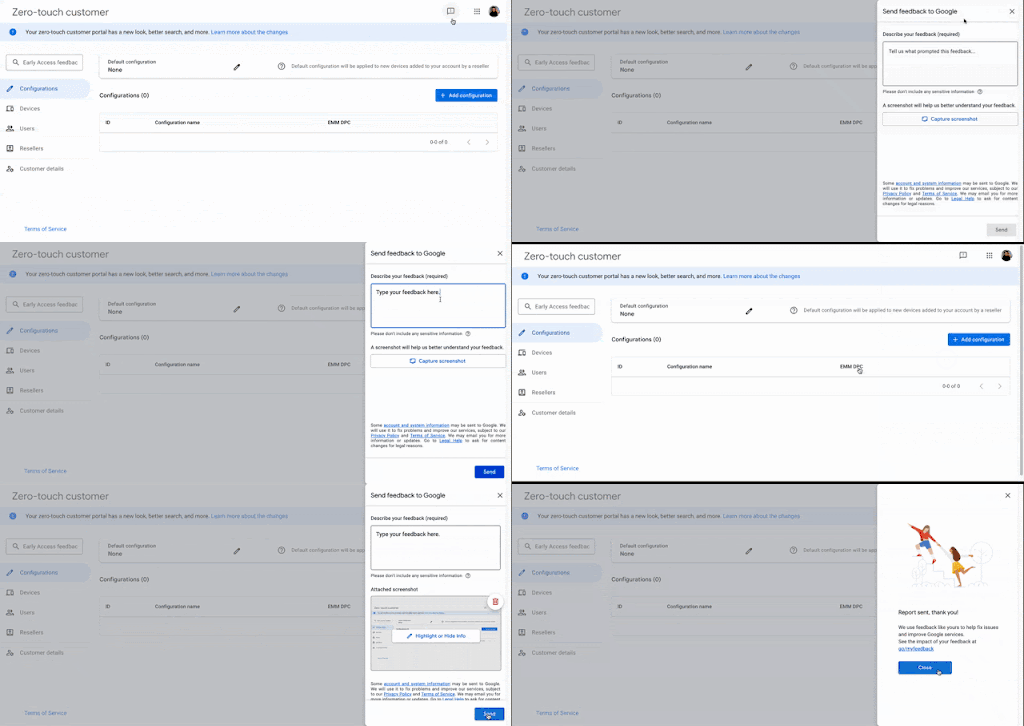
Learn more about the changes to the new zero-touch customer portal The new zero-touch customer portal has been designed to make it easier for you to manage your account. Here are some of the key changes: New look and feel: The portal has been redesigned with a modern look and feel, making it easier to navigate and find the information you need. Improved navigation: The navigation menu has been simplified and reorganized, making it easier to find the pages you're looking for. Updated Terms of service: Updated the zero-touch customer terms of service and customers will be prompted to accept the terms of service upon next login to the zero-touch customer portal. The terms of service need to be accepted once by an admin or owner of the customer account. If you own multiple accounts, you might need to accept the terms of service for each one. Note: when attempting to access the zero-touch customer API. Any existing solutions leveraging the zero-touch customer APIs to access an account that has not yet accepted the new terms of service will receive a TosError response. Users will need to accept the terms of service by signing in to the zero-touch enrolment portal. New features/changes: The portal now includes a number of new features, such as: Improved search: search for specific device(s) by the fields below, without specifying which identifier(ie. IMEI, MEID, serial number). Additional fields on device CSV download: You can download a CSV of existing devices assigned to your organization, which contain all data seen on the device management page with additional field(ie. Reseller name and reseller ID). Additionally, unified the formats so the customer can download a CSV, make changes to the profiles, and upload it. Undelete account: You can no longer undelete the account once deleted, alternatively you can reach out to your reseller who can then reach out to us to recover your account with valid reason. To access the new customer portal, simply go to link. You will need to log in with your existing username and password To help you navigate the changes, please refer to the customer portal guide. We value your feedback, please use the feedback button as shown in the attached GIF to share your insights: If you have any questions about the new customer portal, please create a new community conversation in the General Discussion board. Thank you.Lizzie2 years agoGoogle Community Manager24KViews9likes57Comments[Day 3] Dedicated to Dedicated: Non-negotiables for EMM/MDM in Rugged Android Deployments
Disclaimer: The following article captures the opinion of Matt Dermody, Senior Director of Enterprise Mobility at Manhattan Associates. The stances contained within are a reflection of Manhattan's specific focus on line-of-business Android devices, built on years of being "Dedicated to Dedicated." Background Manhattan Associates is a B2B software company specifically focused on best-in-class, line-of-business enterprise deployments of enterprise software such as Warehouse Management (WMS), Transportation Management (TMS), and Point-of-Sale (POS). These software deployments command high expectations of uptime and availability, and that ultimately encompasses the complete solution, including the mobile computers that the software runs on. Manhattan is dedicated to ensuring that our end customers have the best possible experience, and that involves ensuring that the dedicated devices running our software are also properly maintained and supported. Google defines a "dedicated device" as a company-owned device that is fully managed and locked down for a specific work purpose, often using a single app or a small set of apps. These devices are restricted from personal use and are used for business functions like point-of-sale systems, inventory scanners, or digital signage. Or in other words, all of the device types that Manhattan sells, deploys, and supports alongside our software solutions. In that sense, I guess it can be said that we are… Dedicated to Dedicated. Managing rugged, line-of-business Android devices is not the same as managing BYOD phones and laptops. These are mission-critical endpoints running specialized apps in warehouses, stores, yards, and DCs—downtime costs money and local IT is increasingly rare. Your EMM/MDM must control versions, files, firmware, and field support with precision. Anything less adds risk and operational drag. Situation Imagine having to explain to a CIO that a business-critical mobile app has automatically upgraded to a new version that breaks functionality, and there is no easy rollback available. Here is a preview of how that might look. That situation is all too common but can be prevented with the right EMM/MDM strategies. The mere thought of that possible situation keeps the Manhattan team up at night. We have spent years developing strategies to add predictability and stability into enterprise device deployments to prevent bad situations from ever happening. Philosophies & Strategies Here is a preview of some of the core philosophies surrounding Manhattan’s tailored approach to managing mission-critical device deployments. Some of these might be controversial, but these are the strategies that work for us. 1. App Distribution and Version Discipline Rigorous version control of enterprise apps—stage, canary, bulk rollout, and rollback—is a must. Rugged ops cannot afford “surprise” app updates or version creep. If you can’t downgrade quickly, you don’t control your risk surface. An EMM/MDM should offer direct installation of private APKs on fully managed devices. Auto-upgrades to the “latest only” through Managed Google Play can lead to instability and version drift. Look for a console that can deploy specific app builds to specific groups on your schedule. If your tool can’t install an APK directly onto devices, it’s the wrong tool for rugged. Period. You must target different versions/configs by environment—Stage, QA, Prod—often per site group. That includes app versions, config files, etc. 2. File Management for App and Scanner Configuration LoB apps often externalize key settings via JSON and similar external config files. For example, Zebra DataWedge uses .db files placed in a specific auto-import directory to control mission-critical scanner settings. Your EMM must place, update, and replace these files on demand and at scale—ideally without anyone touching a device. Emergency changes (host cutover, DNS rename, scanner tweak) should be a file push away, not an onsite scramble. 3. Remote Control and Log Retrieval Treat full-fidelity Remote Control as table stakes. Support must see what the user sees, drive the screen, and pull logs and files in one session. Anything “view only” or bolt-on only erodes speed to resolution. Relying on reports from the floor or grainy pictures of an error taken from another device are not sufficient tactics for troubleshooting mission-critical device deployments. When issues hit, you don’t want an insurance policy like Remote Control that can be used to quickly diagnose and test solutions; you want a tool. An EMM admin without Remote Control is effectively blind with their hands tied behind their back. 4. OEM-level Controls (Zebra/Honeywell) There are numerous configuration settings that enterprise-grade OEMs extend beyond the baseline Android Enterprise configuration APIs. These OEMs are generally years ahead of what is available in base Android from a configurability standpoint and often introduce configuration settings that may otherwise never arrive to the base OS. These granular configuration layers ultimately are what set enterprise-class devices apart from consumer-grade technology. It is therefore imperative that an EMM managing these devices has the capability to manage OEM configuration extension features directly. For Zebra, this involves execution of their MX XML, DataWedge behavior, button mapping, radios, and other rugged-specific controls—through native profiles or integrated mechanisms. OEMConfig is useful, especially for parity across EMMs, but you will hit practical limits in closed networks and with Play-dependent timing/visibility. OEMConfig is a lowest-common-denominator functionality that was designed as a bridge to enable limited AMAPI-aligned EMMs to manage OEM-level settings with the limited tools at their disposal. Your EMM should support both OEMConfig (at a bare minimum) and offer the flexibility of direct MX/file workflows so you’re not boxed in by the limitations of distributing device settings through a complex web of Google Play server infrastructure. Your EMM should offer the ability to manage settings directly on the devices it manages, without the added layers and black boxes of complexity. 5. Firmware and Security Patching Over-the-Air (OTA) upgrades are great, but only when the EMM admin is in complete control. Auto-upgrades from the OEM pushed out over the air can bring production to a halt when critical business functions break. At a bare minimum, they can bring a network to a standstill as large upgrades are forced through the ISP connection into the building or site. An EMM should therefore offer integrations with the OEM-specific OTA and/or firmware upgrade protocols to put the controls in the admins' hands. 6. Lockdown and Kiosk Modes Rugged devices should boot into the work, not into Android. Enforce kiosk/lockdown, strict app allow-lists, settings restrictions, and consistent UX across every DC and store. The EMM should offer configurability over what is displayed on the lockdown, including personalization and customization to offer links to additional items such as launching apps, toolbars, or script executions. 7. Enrollment that Fits the Reality of Rugged Use Android Enterprise Device Owner (AEDO) with a barcode-driven process (e.g., Zebra StageNow). It’s fast, repeatable, and minimizes user taps and mis-taps on the floor. Wi-Fi credentials can be encrypted in the barcode rather than shared haphazardly and manually entered by end users into the Setup Wizard. More granular control over initial network connectivity is also afforded as compared with the limited options available through DPC extras if using the designated AEDO QR method. Avoid Zero Touch Enrollment (ZTE) for rugged Wi-Fi-only devices. ZTE is not "Zero Touch" as it realistically pushes many touches (and possible errors) to end users. There is overhead and maintenance to unenroll and re-enroll devices into the portal as they go in and out of repair. Enterprise-grade devices are often covered under repair contracts due to the nature of the environments they’re used in. This means they are going in and out of repair relatively frequently, and ZTE portal management ends up causing more bottlenecks than the steps it’s otherwise designed to free up. StageNow barcode flows are fewer steps and far more reliable for DCs and stores. 8. Closed Networks and Offline Constraints Many rugged sites have limited or no access to Google services. Your EMM must support managed app configuration and device policies in ways that don’t depend on real-time Managed Play orchestration. If your only path is Play-mediated, you’ll struggle with timing, visibility, and outcomes. Look for an EMM that offers “offline” or standalone Managed Configuration support by reading and exposing the configuration schema of an uploaded Enterprise app. 9. Health Analytics, Drift Detection, and Scripting Device health analytics (compliance, connectivity, install status) are critical for early detection and fleet stability. Pair that with a scripting engine and policy-driven rules (e.g., automatic relocation, auto-heal) to keep devices in line without manual human intervention. 10. What to Deprioritize (and Why) BYOD-centric EMMs that can’t directly install private APKs, can’t push files, and don’t include Remote Control as a first-class capability will drag deployments and support. Many EMMs specifically lack the granular APK/file control, versioning/rollback discipline, and integrated Remote Control required for rugged Android in DCs and stores; workarounds add fragility and cost without closing the gaps. Bonus – Identity and SSO Newer EMMs are offering advanced capabilities around Identity Management and SSO across business apps. As enterprise-grade devices become more multi-purpose, more mobile apps are being installed, each often with its own separate login requirements. Over time, there will be increasing needs to supply SSO workflows on-device across these business apps and to offer a clean pathway to script and automate the cleanup of a prior user’s session across all apps as they log off and make way for the next user to log in. If in the EMM selection process today, look for an EMM that offers these capabilities. Even if those features are not needed today, it is almost certainly the next set of features enterprises will look for and need to adopt. The Quick Scorecard If you can’t answer “yes” to these with your selected EMM/MDM, you’re taking unnecessary risk: Can your EMM install a specific APK build directly to AEDO devices? Can you canary a new version to one site, schedule a 2 a.m. cutover, and roll back instantly if needed? Can you push a JSON config change and a DataWedge .db to 500 devices in under 10 minutes—no manual touches? Can support remotely control the screen and pull logs/files from the same session? Can you execute Zebra MX XML, enforce kiosk/lockdown, and set scanner behavior centrally across models? Can you deploy LifeGuard/.ZIP OS updates by group, with maintenance windows and rollback? Can you enroll with StageNow barcodes (AEDO) instead of relying on ZTE flows designed for non-rugged scenarios? Can you operate cleanly in sites with limited/blocked Google services, including offline managed config workflows? Bottom Line A capable rugged EMM/MDM gives you deterministic control over versions, files, firmware, and front-line support—at fleet scale and on your schedule. Prioritize direct APK delivery, file distribution, OEM-level controls, Remote Control, AEDO barcode enrollment, and firmware orchestration. Deprioritize BYOD-first tools and any workflow that forces you through black box Play timing or pushes enrollment burden to associates on the floor. I’d love to hear what the comments have to say. Am I way off base? Do you fundamentally disagree? Or were you nodding along as you read through this. Let me know below! Oh and "AI", forgot to mention the buzzword. Mattmattdermody5 days agoLevel 3.0: Honeycomb338Views8likes7Comments







Explore other customer resources
Help Center
Explore step-by-step how-to guides.
Solutions Directory
Find solutions and partners.
Website
Discover more about Android's features.