Recent discussions
 Skip2 hours agoLevel 1.5: Cupcake44Views0likes4Comments
admin.google.com and Enterprise.google.com Domain account Merge
Hey Everyone! Recently found out that we are using multiple google.ca tenants to manage some on prem machines (chrome os and browser), going to do a Domain validation for our Zero touch portal (enterprise.google.com) and just wanted to verify what's going to happen once we complete the Merge of domain accounts. Since these seems to be completely separate admin consoles, how do we know which one will be kept and what wont? what is required to migrate over without any impact? So I guess a few questions; How are the two tenants linked in any way?Admin.google.com and Enterprise.google.com What happens if there are two tenants and we merge, which one it kept? since we are doing the validation on the Enterprise.google.com site, nothing mentioned the Admin portal impact. Very confused on this whole situation, documentation does not mention if someone else has already configured and using another admin console and the proper way to perform a domain validation. thanks in advance!6Views0likes0Comments
Fido2 key and their issues using them on Android
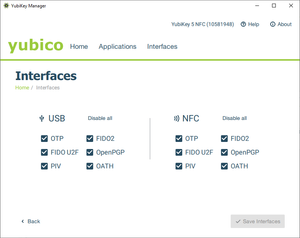
First, do Android support using Fido2 keys on Android? Yes, it does support both using bluetooth, NFC and USB authentication. For reference: https://developers.google.com/identity/fido/android/native-apps But does it mean that it is straight forward to use it in a enterprise environment without hiccups? No, the support lacks many features that both Windows and iOS has supported for long time. If I buy a modern Fido2 with OTP support, will it work straight out of the box for using the USB? No, you need to disable the OTP support first. Here is how you can do that from yubikey manager, this works for Yubikey. Other vendors might have something similar. But for Fido2 keys without OTP support, it should work out of the box for USB-C, like Google titan. Why this happens, dont know. Can we use NFC for Entra ID authentication like we can on Windows and iOS? No. Android does not currently support CTAP2 for NFC, only for USB-C input. CTAP1 (FIDO U2F) supports certificate based authentication, but CTAP supports user verification with PIN and biometrics. Entra ID requires UV (user verification) before accepting login. As far as I know, there is also support for bluetooth. But I dont have any fido2 keys that support bluetooth yet. So why does this matter? With Android you can have shared devices with secure login for multiple users with a single log in for all supported apps, auto log off and many other possibilities. https://learn.microsoft.com/en-us/entra/identity-platform/msal-shared-devices Other sources/discussions: https://www.reddit.com/r/yubikey/comments/1oncuh2/whats_the_point_of_nfc_on_android/ https://www.reddit.com/r/yubikey/comments/13tlzoc/fido2_inconsistent_across_windowsandroid/ https://fidoalliance.org/specifications/Rakib21 hours agoLevel 2.3: Gingerbread766Views3likes14CommentsIMEI2 becomes the default IMEI with an eSIM.
Hello, On our Ivanti Neurons MDM, we use this API to retrieve IMEIs: getImei() in TelephonyManager is equivalent to: getImei(getDefaultSim()); So when the only sim is inserted in the second slot: getImei() is the same as getImei(1) causing duplication in the report. Ref: https://android.googlesource.com/platform/frameworks/base/+/b6587ea/telephony/java/android/telephony/TelephonyManager.java#843 The API used to retrieve IMEIs seems to target getImei(getDefaultSim()), which causes problems with eSIMs that use IMEI2. It therefore retrieves IMEI2 as the default IMEI, which can cause problems with registration consoles such as ZTE, where only IMEI1 is entered. Is there a way to correct this to avoid IMEI swapping? Regards.kEvaR2 days agoLevel 1.6: Donut195Views3likes8Comments[Day 4] Managed Google Domains: What, why, and how to upgrade
What is a Managed Google Domain? In Android Enterprise land, a Managed Google Domain refers to using a Google-managed organisation (like Cloud Identity or Google Workspace) to create and manage the connection to an EMM (the bind), it sits in contrast with Managed Google Play accounts, which uses a “personal” Gmail account to manage enterprise devices and apps. In practical terms, it means Android management is tied to an organisation’s work domain (e.g. @company.com), managed through the Google Admin console, rather than being tied to a single @gmail.com account. This approach unifies Android management with other Google services (Workspace, Chrome, etc.) under one organisational account, and is not only the default approach for all newly-binding organisations, but recommended by Google as an upgrade for all existing managed Google Play accounts enterprises due to the benefits it provides to IT admins and employees. Historically, organisations (even those with Google Workspace) used a managed Google Play Accounts setup - essentially registering Android Enterprise with a Gmail account - arguably said Gmail account could be created under a domain by using an existing email address, but this isn’t foolproof. The EMM (Enterprise Mobility Management solution) would then create generic managed Google Play accounts on each device for app distribution, account management, and so on. This legacy method worked, but it meant the entire Android Enterprise bind was owned by a personal account. It also means for devices there was no user identity, so things like automatic provisioning of the Google suite of applications with a managed account wouldn’t happen, and if a user was to add a managed account, behaviour around the app store, data sync, and more would become a challenge. Look familiar? Now, Google has introduced a better way. Why Google has (mostly) moved away from Gmail-based accounts Using a personal Gmail to manage enterprise devices has been convenient, but it poses security and management risks. For one, a Gmail-based enterprise bind is outside your corporate identity control - security teams cringe at the idea that the keys to your mobile fleet are held by an unmanaged personal account. There’s no way to enforce corporate security policies (no mandatory SSO, no corporate-managed 2FA or security keys) on a personal Google account. It also creates a single point of failure: if a Gmail owner leaves the company or loses access, recovering the account (and therefore control of all devices) can be difficult. Google’s solution is the Managed Google Domain - essentially migrating Android Enterprise enrolment to a proper Google organisation owned by the business. This shifts control from a personal account to corporate-owned credentials, immediately strengthening security. IT admins (plural, as now there can be several!) can log in with their work email and leverage enterprise-grade protections like multi-factor authentication (MFA), security keys, and single sign-on. In short, it “severs the tie” to the personal account and brings Android management under your company’s identity and policies. Equally important, Google is future-proofing Android Enterprise with this change. The new domain-led approach, rolled out in 2024, eliminates previous limitations. For example, historically one Google account could only bind to one EMM at a time. Now, once your domain is verified, you can actually bind multiple EMMs (or multiple instances of an EMM) to the same organisation - useful for testing a new EMM or running production and sandbox environments simultaneously. It also lays the groundwork for deeper integration with Google’s AI and cross-device features that rely on full Google accounts. How to upgrade to a Managed Google Domain For organisations currently on the older managed Google Play accounts bind, upgrading is straightforward and free. Google offers a one-way migration path from the Play Accounts enterprise to a managed domain enterprise. You can initiate it either via your EMM console’s Managed Google Play iframe or through an EMM provider’s implementation of the respective APIs: Via EMM Console (Play iframe): In your EMM console, navigate to the Managed Google Play area (for example, the app approval section). Many consoles now display an “Upgrade for free” banner or button at the top of the embedded Play iframe if your Android Enterprise is currently bound with a Gmail account. Clicking this starts the upgrade flow. You’ll be asked to sign in with the current owner account (the Gmail that was used originally), then provide a work email to act as the new admin account for the Google domain. If your organisation already has a Google Workspace or Cloud Identity domain, you can log in with a super admin of that domain to bind the enterprise to it. (Don’t worry - the Android Enterprise enrolment will belong to the domain itself, not that individual admin account.) If you don’t have an existing Google domain, you can create a new Managed Google Domain on the fly using your work email’s domain. For example, if you enter it@company.com, Google will set up a Cloud Identity domain for “company.com”. You’ll verify your email address and later have the option to perform full domain verification (to unlock all features, e.g authenticate with Google, ChromeOS management, and more. Via EMM API: Some EMMs may provide their own “upgrade” prompt or process using Google’s direct APIs. The steps are essentially the same - the EMM triggers the creation or linkage to a Managed Google Domain, and you supply a corporate email domain to either link or create the Google admin account. Speak to your EMM vendor for details on how to achieve this. Log in or create an account Authorise the migration Do a little shimmy, you’re done. After a successful upgrade, your Android Enterprise is now managed in the Google Admin console (under Devices > Mobile & endpoints, etc.). Notably, you should no longer use the old Play console for enterprise settings - those settings move into the Admin console and your EMM interface. The migration is again one-way; you cannot revert back to a Gmail-based setup, so double-check that chosen domain! The good news is that all your enrolled devices and approved apps remain intact - the change is largely on the backend linkage, and it does not unenrol devices or remove apps in your EMM console. Key Benefits of Using a Managed Google Domain: recapped Upgrading to a managed domain unlocks a range of benefits for both IT administrators and end users: Stronger Security & Admin Control: Admins log in with work email addresses and managed identities, not consumer Gmail. This means you can enforce your usual security policies (company SSO, MFA, password rules) on these accounts. Google specifically highlights that this allows enterprise-grade authentication - you can require admin logins to use multi-factor auth, hardware security keys, etc. Account recovery is also simplified (the domain super admin can reset passwords or reassign admin roles as needed). No more worrying about a single person “owning” the enterprise—ownership now belongs to the organisation. Single Sign-On (SSO) and Microsoft Integration: If your company uses Microsoft 365/Azure AD for identity, Google has made the integration seamless. The sign-up process can work directly with Microsoft 365 accounts, automatically tying in your external Azure AD identity as the IdP for the Google domain. This means your users (and admins) can authenticate with their Microsoft corporate credentials to access managed Google Play and other Google services, without you having to manually configure a SAML SSO federation. Google essentially removes the extra SSO setup step when you use a Microsoft-managed domain during the bind. Multiple EMMs and Flexibility: A Managed Google Domain allows binding multiple EMM instances to your single organisation ID. Practically, this means you could have, say, your primary EMM and a test EMM environment both managing subsets of devices under the same Google enterprise. Or, if you are transitioning between EMM vendors, you can connect the new EMM without unbinding the old one, then migrate gradually. This was impossible in the old Gmail-based model. Unified Admin Console & Google Services: Once on a managed domain, you gain access to the Google Admin console for device management and more. Beyond just Android management, this opens the door to centrally manage other Google products. For example, your team could explore using Google Workspace apps, Google Chrome management, or even new AI tools like Google Gemini on Android, all managed from one place. Better Employee Onboarding: With a managed domain, users can enrol their devices using their corporate credentials (email/password or SSO) rather than a special code or dummy account. This makes the provisioning experience more intuitive - they log in with their company email during setup, which configures the work profile/device. It also means if they already use Google Workspace, their apps and data can populate seamlessly. Legacy Managed Play Accounts can still be leveraged I mean this in two ways.. First, not every organisation may be ready to move to a Managed Google Domain immediately, and that’s OK. Google isn’t shutting down the old method yet. If you don’t have a Google domain or aren’t in a position to use one, you can continue using the managed Google Play Accounts approach with a Gmail admin account - your EMM will keep generating the necessary managed play accounts on devices as it always has. Nothing stops your Android Enterprise deployment from functioning, and Google will allow maintaining the legacy binding for now. Secondly, even if you were to migrate to a Managed Google Domain, some devices and use cases simply don’t suit user authentication/association. EMMs that support it should offer a personal use option for dedicated devices that will still provision a managed Google Play account for dedicated, userless devices. That use case isn’t going anywhere with this change. So, should you upgrade to a Managed Google Domain? If you can - absolutely: all the newest features and integrations are being built with Managed Google Domains in mind. So while you won’t be left in the cold if you stick with the old Gmail-based bind today, you’ll be missing out on security improvements and future capabilities going forward. Toodles, Jasonjasonbayton2 days agoLevel 4.1: Jelly Bean505Views13likes8Comments**CLOSED**[Survey] End of Year Customer Success Programs Feedback
***This survey is now closed*** Hello everyone, As 2025 comes to a close and we look toward a new year, this is often an excellent time for reflection. It has been a busy year, and we've so enjoyed speaking with you and seeing the interact with other community members. The Android Enterprise Customer Success team is dedicated to ensuring that our programs and resources—including the Customer Community, The CAFE, and Advisory Services—are useful, enjoyable, and impactful for you and your teams. As we head into 2026, we’d love to hear directly from you! Would you mind sparing less than 5 minutes (I’ve been assured it won’t take a minute more 😀) to complete our Customer Success Products CSAT survey and share your overall experience please? The survey contains multiple sections for each customer programs. Please only select 'Yes' for the area(s) relevant to you. Your honest feedback is vital and will directly influence the improvements and new features we prioritise. The Customer Community is a collective space, so it’s really important to us that you help to shape the direction. Thank you so much and let me know if you have any questions or thoughts you’d like to share with everyone, below. Lizzie (and the whole AE team)Lizzie8 days agoGoogle Community Manager228Views6likes6CommentsIntune - Zebra Scanners - not recognized as company devices in ZTP
Hi, we are using MS Intune and Google Zero Touch Portal, and a large number of Zebra scanners. We created several profiles in ZTP with DPC extras (JSON) to link the devices to the corresponding Intune enrollment profiles. However, when the scanners are set up and connected to wifi, they will not identify as company devices, but continue setup in "private" mode. I assume there is a problem in our JSON config, but I could not find it. I already checked some other discussions in this forum, but could not yet find a solution. Apologies, if this problem should already be resolved, then I am happy if you point me in the right direction. :) Thanks very much and best regards TobiasSolvedTReinhold8 days agoLevel 1.6: Donut85Views0likes8Comments
Impact of Google Scribe Changes on Samsung S-Pen Usability in Industrial Contexts
Hello, We have observed a significant change in S-Pen behavior following the integration of Google Scribe into Android 15 / 16 on our Galaxy Tab Active 5. Previously, the stylus allowed cursor movement (or select an write area) within text fields without triggering handwriting input. This was essential for our use case. Our technicians are working in proximity to high-voltage electricity and must wear protective gloves. The stylus is their only means of interacting with the tablet during operations. With the recent change, the stylus now immediately writes in text areas instead of moving the cursor, making it impossible to position the cursor without touching the screen with a finger (which is not feasible in our environment). Before with old firmware (Android 14): https://youtube.com/shorts/RXaPRRXaNcs?feature=share After with latest version of Android with Google Scribe (Android 15/16) : https://youtu.be/ZfKKCKcfxUc / https://youtube.com/shorts/EbuibT211lg This modification introduces a critical usability issue for industrial and safety-related workflows. Is there any documented workaround or configuration option to restore the previous behaviour (cursor movement without writing / select area)? If not, could this scenario be considered for future updates of Android? Thank you for your attention to this matter. Best regards,Aurelien1234510 days agoLevel 1.6: Donut182Views2likes10Comments
"Your administrator has not given you access to this item" - Intune issues with Google accounts and previously used apps
Basic set up: Managed Google Play + Intune Devices all set up as "Corporate-owned, fully managed user devices" Policies are set to allow all apps from store and to allow other accounts to be installed on devices. GSuite individual Google accounts with corporate email addresses signed in to all devices to allow for things like Photos backup. Problem: When migrating a user to a new device, some apps cannot be installed. When a user is signed into Google Play with their Google Account, any app that is already linked to their Google Account from their previous device (for example: WhatsApp, Samsung Notes, Translate), cannot be installed with the error "Your administrator has not given you access to this item". If I sign the user out from their Google account, install the app and then sign them in again, it all works fine, but this should not be necessary. It seems like the problem is stemming from the Play Store not liking the fact that the corporate Play Store profile is trying to install apps that the Google account has already signed in to previously. Any thoughts on fixes? Thanks.csuke10 days agoLevel 1.5: Cupcake156Views0likes4Comments
Play Protect is blocking our DPC app — appeal already submitted, looking for guidance
Hello everyone, We are currently facing an issue where Google Play Protect is blocking our Android application during device provisioning. Context: - It is not distributed via Google Play (but is already published); it is hosted externally and installed during provisioning via QR code. - The app is properly signed, and provisioning works at the system level, but Play Protect blocks the app with the message “App blocked to protect your device.” - This started happening recently on new devices / factory reset devices. We have already submitted the official Play Protect appeal form as recommended in the documentation: The form was completed with all required information (APK, package name, signing certificate, use case, etc.). At this point, we are looking for guidance from the community: - How long does it usually take for the Play Protect appeal form to receive a response or decision? - Is there any additional step or channel recommended for Android Enterprise DPC apps in this situation? Any insights or shared experiences would be greatly appreciated. Thank you in advance for your time and support. Best regardsSolvedrPoyo10 days agoLevel 1.5: Cupcake1.3KViews1like24Comments


Explore other customer resources
Help Center
Explore step-by-step how-to guides.
Solutions Directory
Find solutions and partners.
Website
Discover more about Android's features.